How to add text to a picture
You baked a cake and want to invite the neighbours, or you have the perfect photo for a joke in the group chat. Either way, the picture needs a few words on it.
Click, type, move
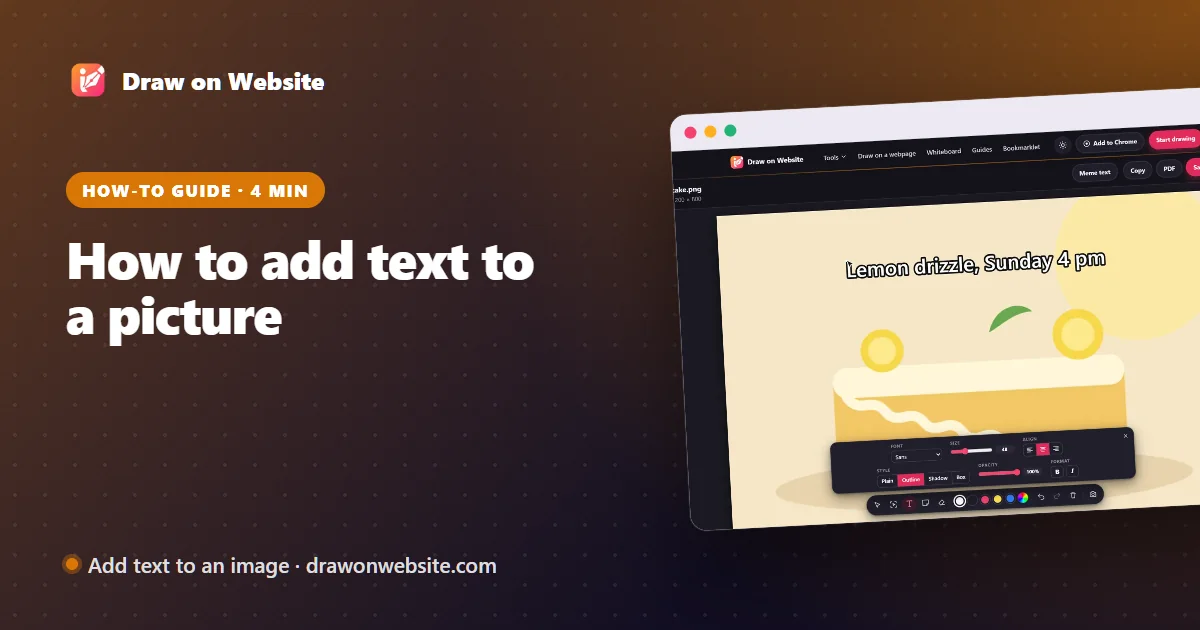
- Open Add text to an image. Click Choose a picture, drop one on the page, or paste it with Ctrl+V.
- The text tool is already picked. Click where the words should go and type. Press Enter for a second line, and Esc when you are done.
- Press V for Select. Drag the text to move it, and use the handles to resize it or turn it at an angle.
- Click Save image for a PNG, or Copy to paste it straight into a message.
New text starts large, centred, white, and with a dark outline. That default is on purpose: it is the style that reads on the most photos without any fiddling.

Make the words readable
The most common problem with text on a photo is that half of it disappears. White letters vanish against a bright sky, dark letters vanish in a shadow. The Style setting in the options bar fixes most of this.
Outline puts a contrasting edge around each letter (dark around light text, light around dark text), so it stands out on light and dark parts alike. Shadow is gentler and lifts the text off a busy background without the bold meme look. Box puts a solid band of colour behind the words, which works best for small text or a long caption. Plain is just the letters, for when the background is already calm.
Where you put the text matters as much as the style. A patch of sky, a wall or an empty table is easier to read over than a face or a pattern. If there is no calm spot, go for Box.
Choosing a font without overthinking it
There are 12 fonts in the Font menu. For a short caption or a sign, a bold plain one such as Sans, Inter or Bebas Neue is the safe pick. Playfair and Serif suit a quote. Handwriting, Caveat and Pacifico feel friendly on an invitation or a card. Two fonts in one picture is usually the limit before it starts to look busy.
Next to the font you will find size, Bold and Italic, alignment and opacity. There are five colours to pick from, plus a picker for any other colour.
Turn it into a meme
Click Meme text and two captions appear, TOP TEXT and BOTTOM TEXT, in white Impact capitals with a black outline. Double-click each one to type your own words, and drag it if it covers something important.
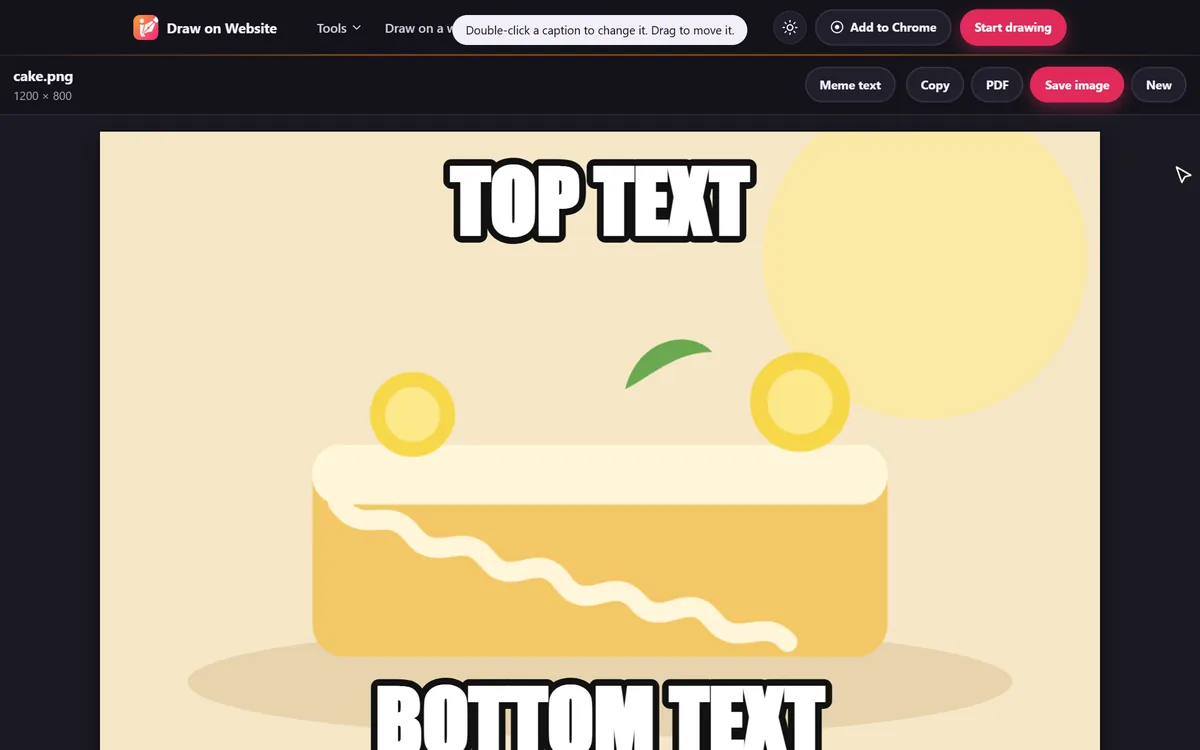
Long meme captions get hard to read on a phone. If yours runs past one line, try cutting words before you make the text smaller.
Changing text after you place it
Everything stays editable until you save. With Select, double-click a piece of text to change the words, or click it once and pick a new font, colour or style. Press Delete to remove it. There is also a Sticky note tool (N) if you want a note that looks stuck on top of the picture.
The saved picture has no watermark, and your photo is edited in the browser rather than uploaded.
Open a picture, click where the words go and type.
Add text to a pictureWant an arrow pointing at something too? Add an arrow to an image. Explaining a screenshot with several steps is a different job, covered in how to annotate a screenshot.
Questions
Will there be a watermark?
No. The picture you save is yours, with no watermark and no logo added.
My text is hard to read. What should I change first?
Switch Style to Outline or Box. If it is still hard to read, move the text to a calmer part of the picture.
Can I put text on a picture from my phone?
Yes, the page works in a phone browser. Tap Choose a picture to pick a photo from your gallery.