How to redact an image
You want to post a screenshot of an error, but your name, phone number and email are right there in the corner. Covering them takes a minute, as long as you use the right kind of cover.
Black bar, not blur, for text
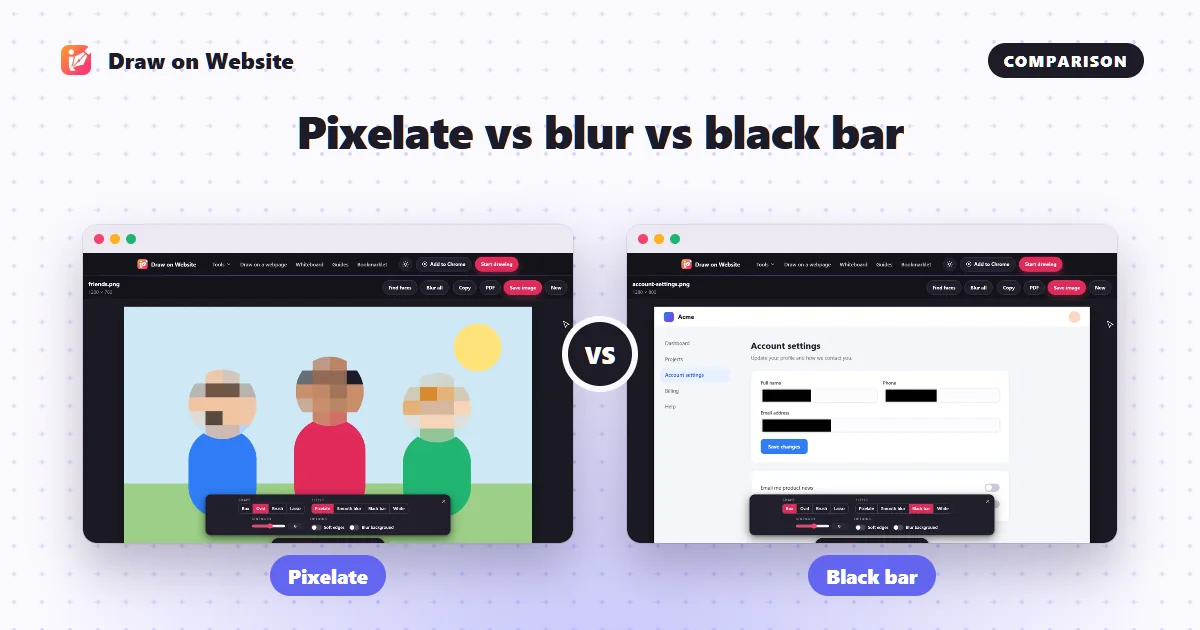
Blur and pixelate look like they hide things, and for faces they usually do. Text is different. A blurred email address or a pixelated phone number keeps some of its shape, and short strings of digits can sometimes be guessed from what is left. A solid black bar leaves nothing to guess from. For names, numbers, addresses and anything you would not read out loud to a stranger, use the bar.
If you want the longer version, with examples, see pixelate vs blur vs black bar.
Redacting step by step
- Open the blur and redact tool. Click Choose a picture, drop the file on the page, or paste a screenshot with Ctrl+V.
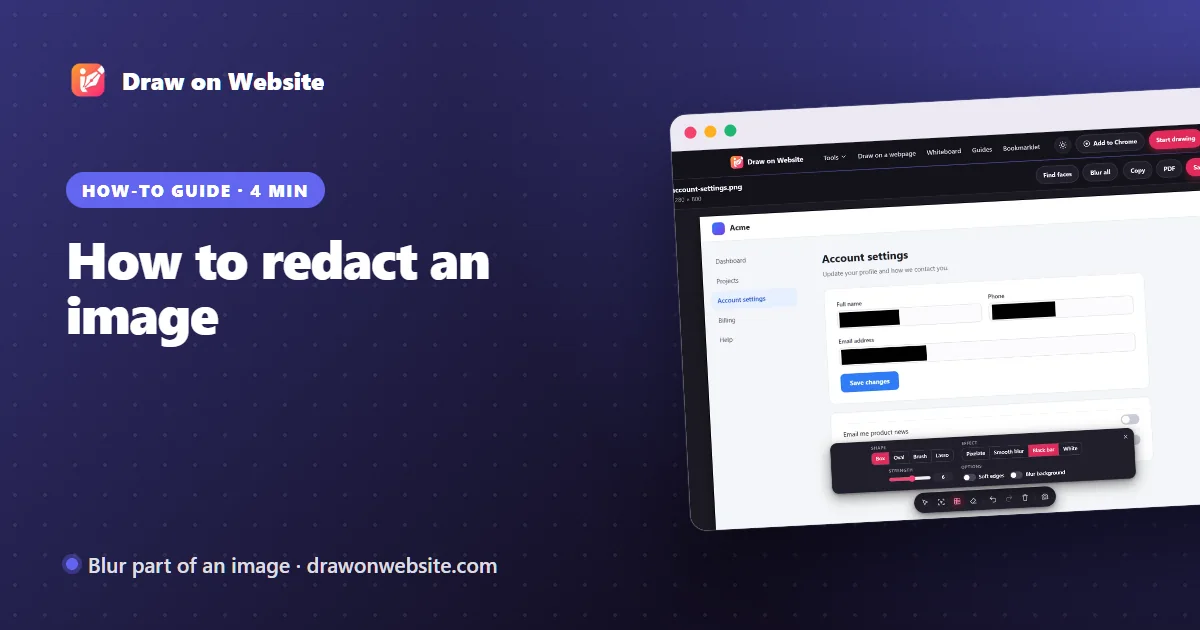
- The blur tool is already picked. In the options bar, set Effect to Black bar. Leave Soft edges off, so the edges of each bar stay solid.
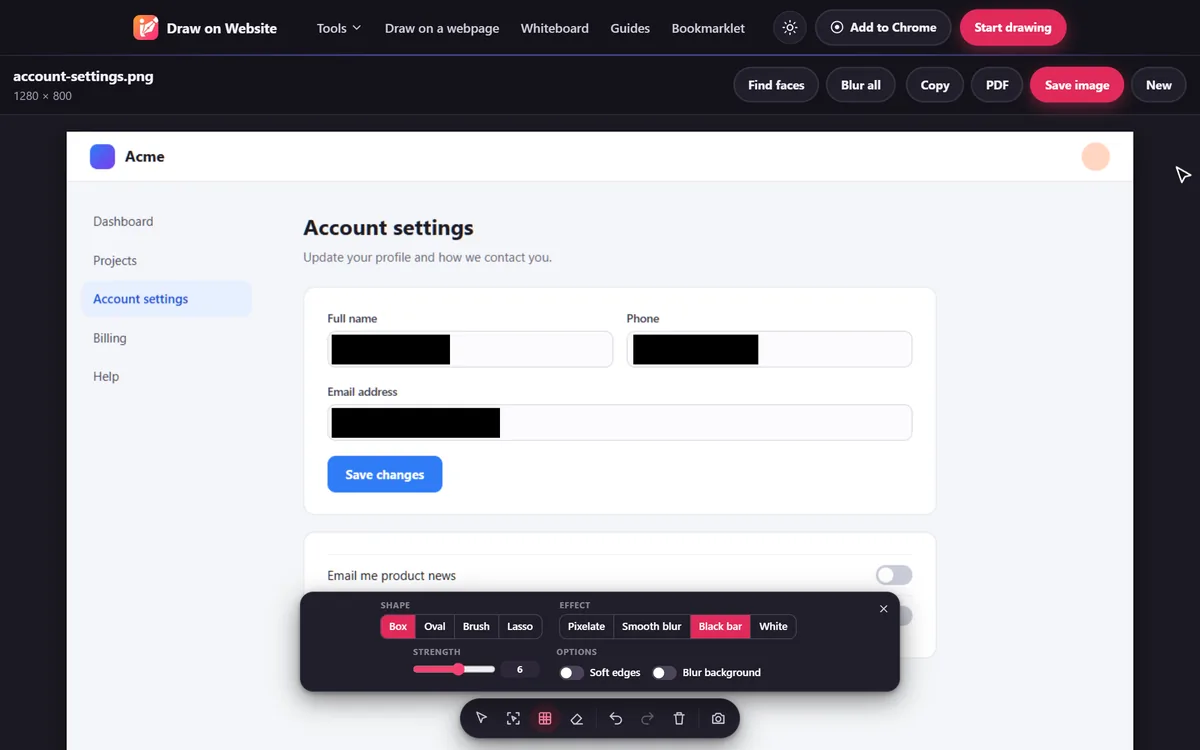
- Drag a box over the first thing to hide. Then the next. Each box is its own bar, so you can add as many as you need.
- Zoom in with your browser if the text is small, and check that each bar covers the whole word, including the tops of tall letters.
- Click Save image and share that saved copy.
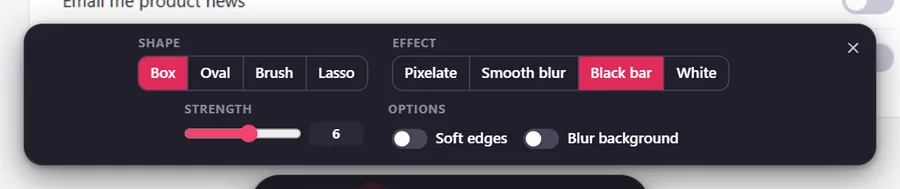
The other shapes are useful too. Brush lets you paint over a signature or handwriting that does not sit in a neat rectangle. Lasso lets you draw around an odd shape. White is handy on a white document, where a black bar would look heavy, and it hides the text just as fully.
Why the saved copy is safe
When you click Save image, the tool draws a brand-new picture. Where the bars were, that picture only has black pixels. There is no hidden layer to peel back, so the original text is simply not in the file.
Photos often carry hidden details such as the camera model or where the photo was taken. The saved copy is a fresh PNG and does not carry those over. And the whole job happens in your browser. The picture is not uploaded.
Made a mistake?
Before you save, nothing is final. Press V for Select, click a bar and drag it into place or pull its corners to resize it. Press Delete to remove it. The Eraser also removes any bar you touch.
Open a picture, choose Black bar and drag over what to hide.
Redact an imageRedacting a PDF instead
For a contract, a bank statement or a form, open it in Draw on a PDF. Its blur tool starts on Black bar. Drag over what to hide and save. The saved PDF is made of pictures of each page, so the covered text is really gone. The catch is that you can no longer select or search the text in that PDF.
If you are also hiding faces in a photo, how to blur a face in a photo covers that side.
Questions
Can someone remove the black bar later?
Not from the picture you saved here. The bar is part of the image, and the pixels underneath were replaced, not covered.
Is a pixelated phone number good enough?
Often not. Short numbers have few possible values, and pixelated digits can sometimes be matched. Use Black bar for numbers.
Does the Strength slider matter for black bars?
No. A black bar is solid at any strength. Strength changes how strong pixelate and smooth blur are.