How to draw on your screen
You’re helping your dad find a setting on a website, and “top right, no, the other one” isn’t working. Or you want to work through a maths problem on a big, empty screen. Either way, you want a pen that draws right on the screen.
What you need depends on what is on the screen. If it’s a website, you can draw straight over it. If it’s nothing yet, a blank board in full screen does the job. And if it’s a desktop app, your computer’s own screenshot tool is the simplest answer.
Draw over the website in front of you
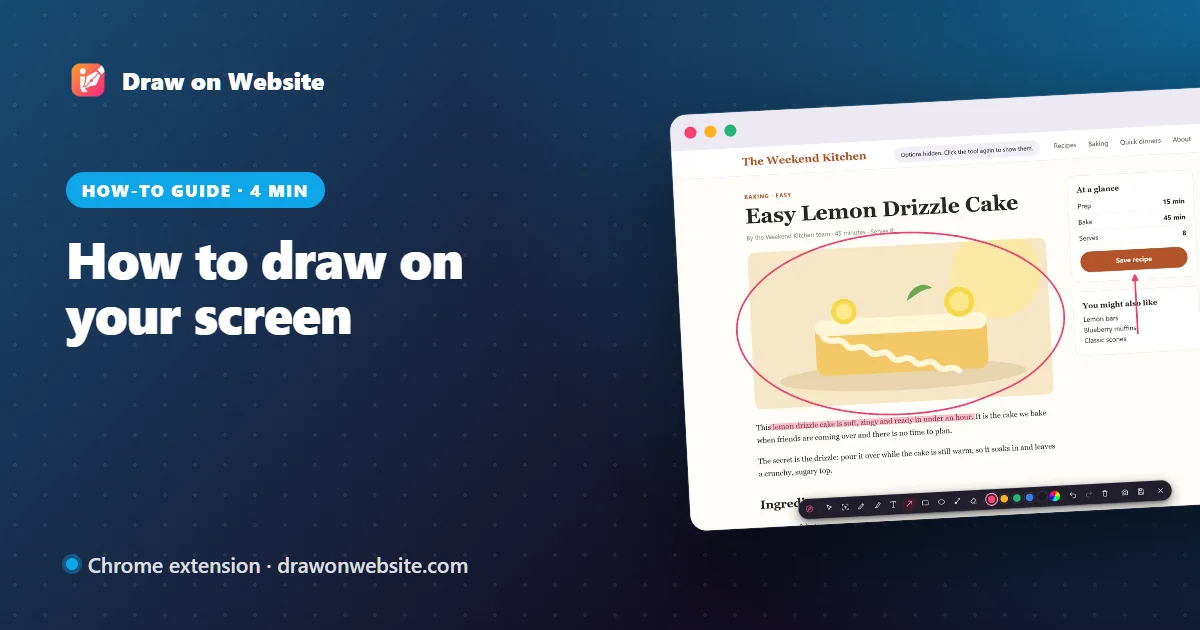
The Draw on Website bookmarklet puts a clear drawing layer over the page you have open. You add it once by dragging a button to your bookmarks bar. After that, it’s one click on any site.
- Open the page and click the bookmark. A toolbar appears at the bottom.
- Draw with the pen (D). The arrow (A), Rectangle (R) and Ellipse (O) are there when a freehand circle looks too messy.
- Press Q for the laser pointer. It leaves a trail that fades by itself, so you can point without leaving marks.
- Press P for the Pointer when you need to click or scroll the page, and D to draw again.
- Click the camera button if you want a picture of the screen with your drawing on it.
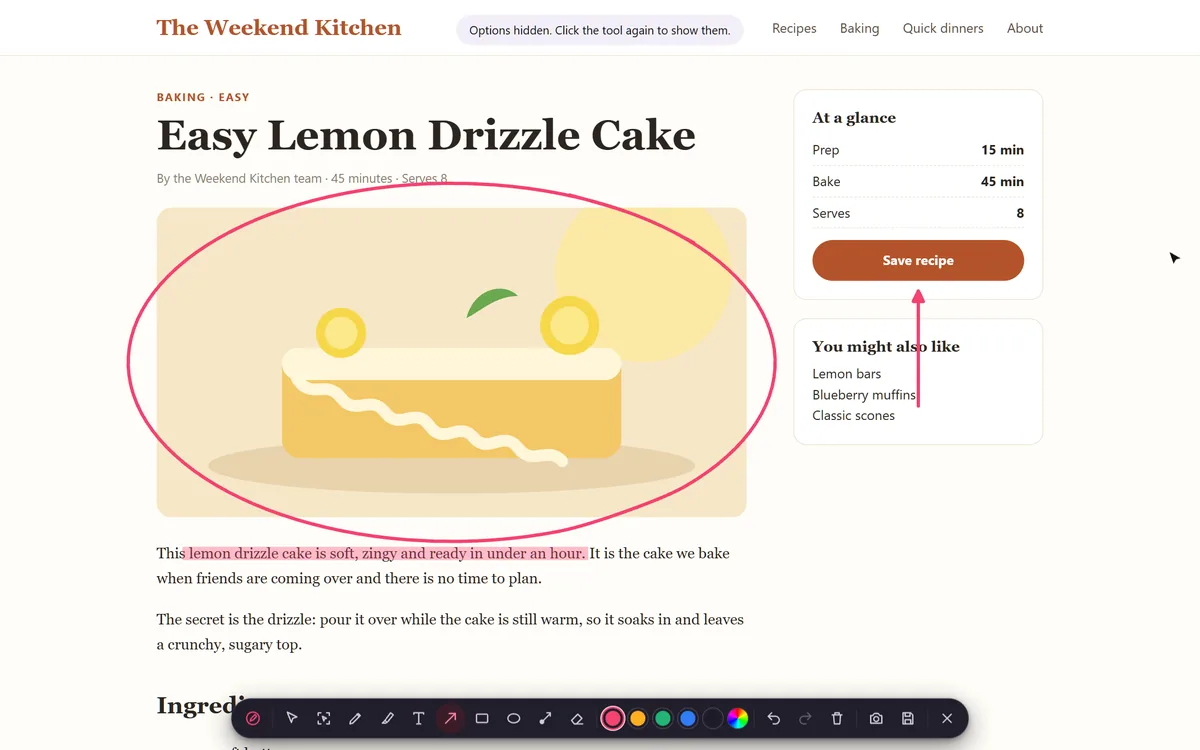
If you do this often, the Chrome extension saves you a step. Press Alt+Shift+D on any page and the toolbar opens. It also works on the few sites that block bookmarklets.
Your drawing only exists in your browser. Nobody else sees it, unless you share your screen or send them the picture. For drawing during a Zoom or Teams call, the guide on drawing on screen during a presentation has a few tricks that help viewers follow along.
Start from a blank screen
Sometimes there’s nothing to draw on yet. You want to sketch a floor plan, explain a diagram or do sums by hand. For that, open the online whiteboard and click the Full screen button. The whole screen becomes a board that keeps going in every direction, and you can zoom in with Ctrl and the mouse wheel.
A dark screen is easier on the eyes in a dim room, and chalk on black is easy to read from the back of a classroom. The blackboard has a chalk look and several board colours, including Black, Slate and Classic green. For maths it also has a compass (C) that draws a circle from its center, and a protractor (J) for measuring angles.
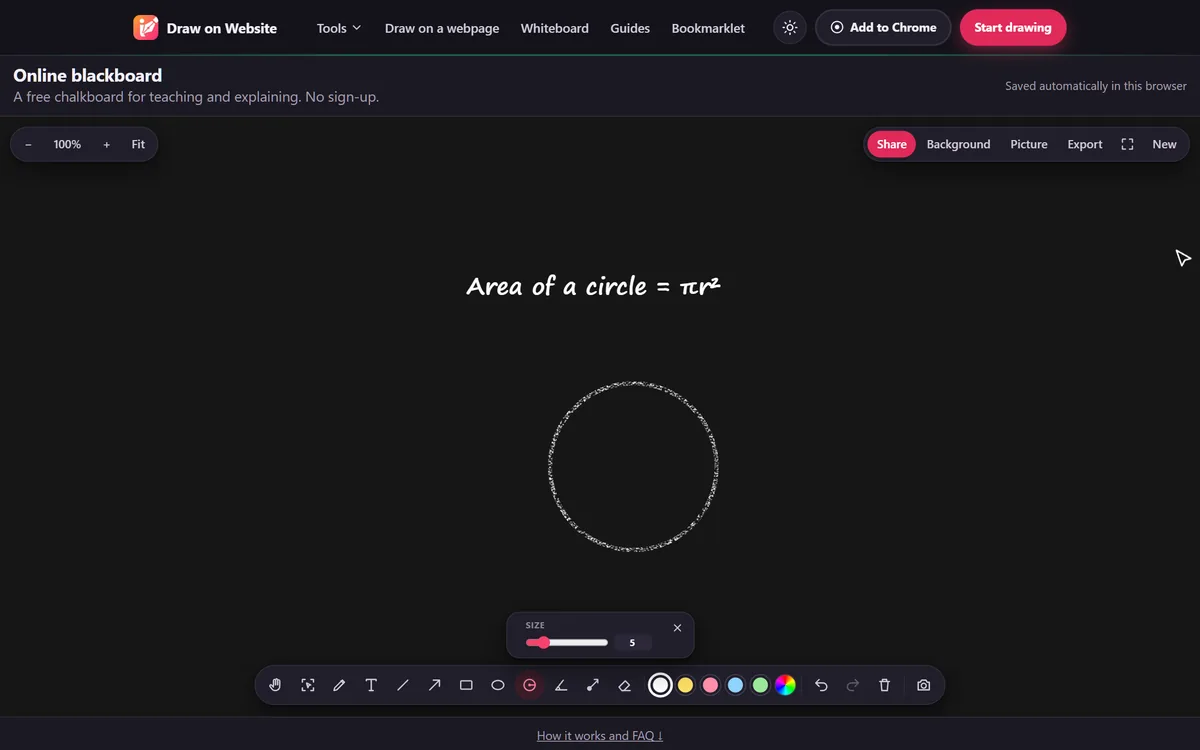
Both boards save what you draw in your browser, so you can close the tab and pick up where you left off. Not sure which board to use? Whiteboard vs blackboard vs graph paper helps you pick.
Drag one button to your bookmarks bar and draw on any website. Free.
Get the bookmarkletDrawing over other apps
Our tools work inside the browser. To mark up something in a desktop program, like a spreadsheet or a settings window, take a screenshot and draw on that.
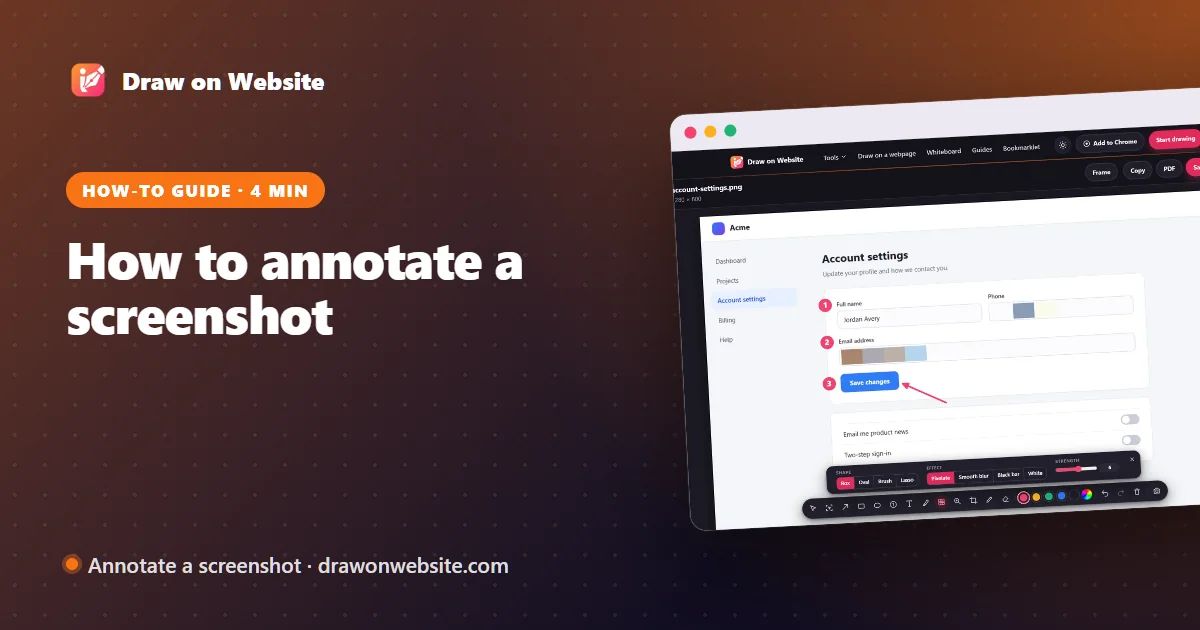
On Windows, press Win+Shift+S, select an area, then click the notification to draw on it in Snipping Tool. On a Mac, press Cmd+Shift+4, click the thumbnail that appears in the corner, and use Markup. You can also open the screenshot on Annotate a screenshot for arrows, numbered steps and blur.
Keep in mind these draw on a frozen picture. You can’t scroll or click underneath. On a live webpage, the bookmarklet is the better choice.
Questions
Can I draw on my screen without downloading anything?
Yes. The bookmarklet is just a bookmark, and the whiteboard and blackboard open in your browser. There is nothing to install.
Does it work on a Chromebook?
Yes. The bookmarklet, the extension and both boards run in Chrome, and work with a mouse, touchpad or stylus.
How do I get a completely black screen to write on?
Open the blackboard, choose the Black board colour, then click the Full screen button.