How to draw on your screen during a presentation
You’re sharing your screen and someone asks, “Wait, which button?” Saying “top right, no, a bit lower” rarely works. Circling it does.
There are two different situations here. Either you’re showing something that already exists, like a website, a dashboard or slides in the browser, and want to point at parts of it. Or you’re explaining something from nothing and need a surface to draw on. Each has its own tool.
Showing a webpage or web app
Use the bookmarklet or the browser extension. Both put a small drawing toolbar on top of the page you’re on, and everything you draw shows up in the screen share.
- In Zoom, Teams or Meet, share the browser tab or window.
- Click the bookmarklet or the extension button to bring up the toolbar.
- Press Q for the Laser pointer. Its trail fades on its own after a moment, so you can point as much as you like without making a mess.
- When a mark should stay, press D for the Pen or A for an Arrow.
- Press P to go back to clicking and scrolling the page. Your marks stay where they are.
Ctrl+Z undoes the last mark, and Clear all on the toolbar wipes the page before you move on. If you’ve never used these, the guide to drawing on a website covers the setup.
Teaching or explaining from scratch
For a lesson or a brainstorm, a blank board works better than drawing over something busy. Open the board in its own browser tab, share that tab, and click the full-screen button in the board’s top bar. The toolbar stays with you in full screen. Click the same button again to leave it.
Maths on a blackboard
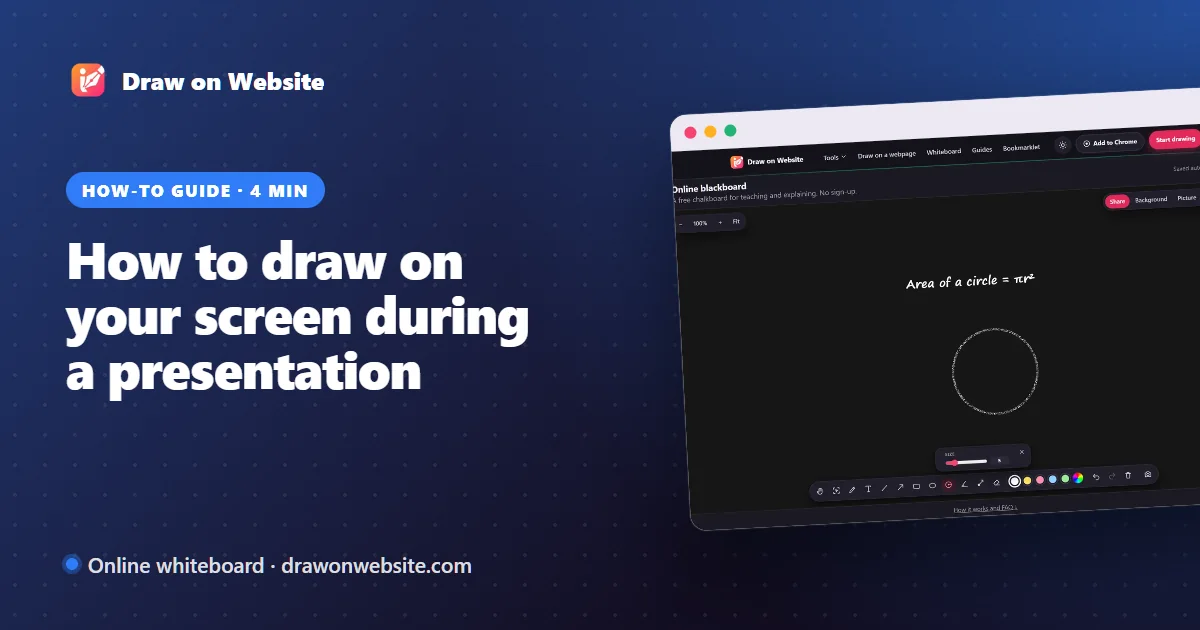
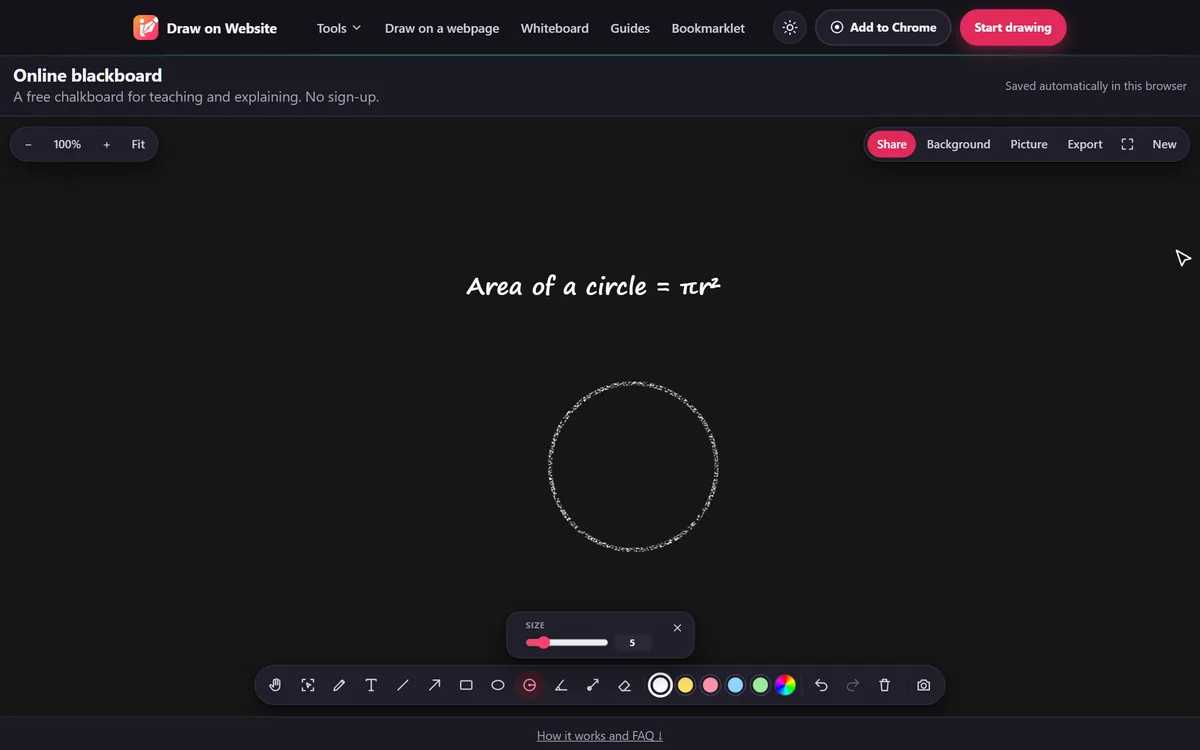
Teachers often prefer the online blackboard, because chalk on a dark board is easy to read on a video call. The pen writes with a chalk look, and text uses a handwritten font. Click Background to pick a board colour: classic green, slate, black and a few others.
Two tools there are made for geometry. The circle tool (C) works like a compass: put the point down at the centre and drag out to the radius. The angle tool (J) works like a protractor: click three points and it shows the angle in degrees.
Ideas on a whiteboard
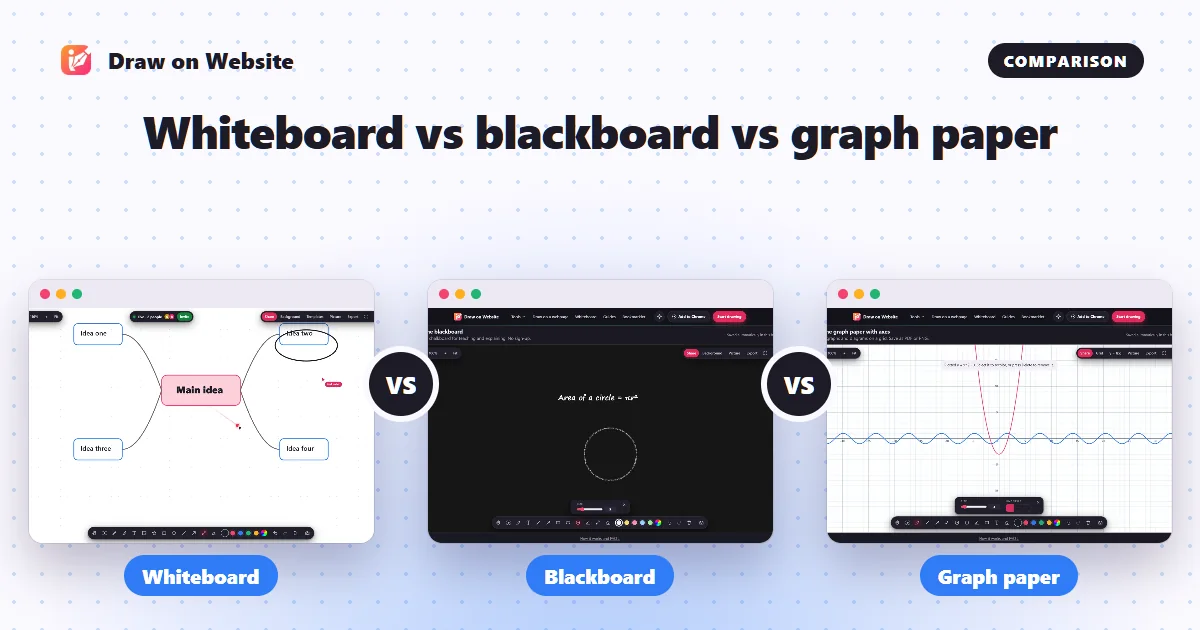
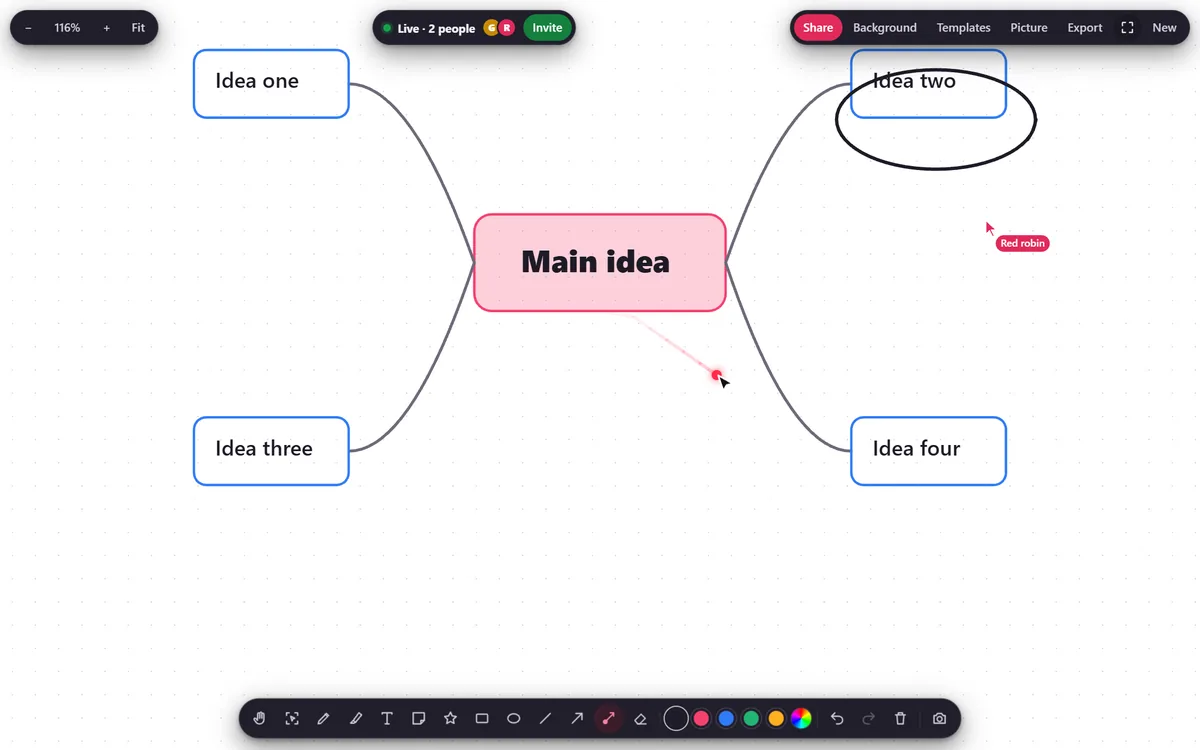
For meetings and workshops, the online whiteboard has more to work with. Click Templates to drop in a Mind map, Flowchart, Kanban board, SWOT analysis, Weekly planner or Brainstorm layout, then edit it while people watch. Sticky notes (N) are good for collecting what people say.
The whiteboard has the laser pointer too. It’s the best way to say “this one” on a crowded mind map without adding another line to it.
Make it readable for the people watching
Video calls squash the picture, and thin lines are the first thing to go. Make the pen thicker than feels natural, and pick colours that stand out from the page, like a bright pink on a white website or yellow chalk on a dark board.
It also helps to keep the two kinds of marks apart. Use the laser for pointing and the pen only for things people should still see a minute later. When the board fills up, clear it or move to an empty area before the next topic. A screen covered in old scribbles is harder to follow than a plain one.
Want the others to draw too, not just watch? Start a live board and send them the link. Our guide to drawing together online shows how.
Full screen, templates and a laser pointer, ready in your browser.
Open the whiteboardQuestions
Can I draw over PowerPoint?
Not with these tools, because the desktop PowerPoint app isn’t a webpage. PowerPoint has its own pen in slideshow mode: press Ctrl+P.
Do the people watching need to install anything?
No. They see your shared screen with your drawing on it, the same as anything else you share.
Will my drawing on the board still be there next time?
Yes. The whiteboard, blackboard and graph paper save automatically in your browser on that device.