How to sign a PDF online
Your landlord emails a rental agreement and wants it back signed by tonight. You don’t own a printer, and you don’t need one.
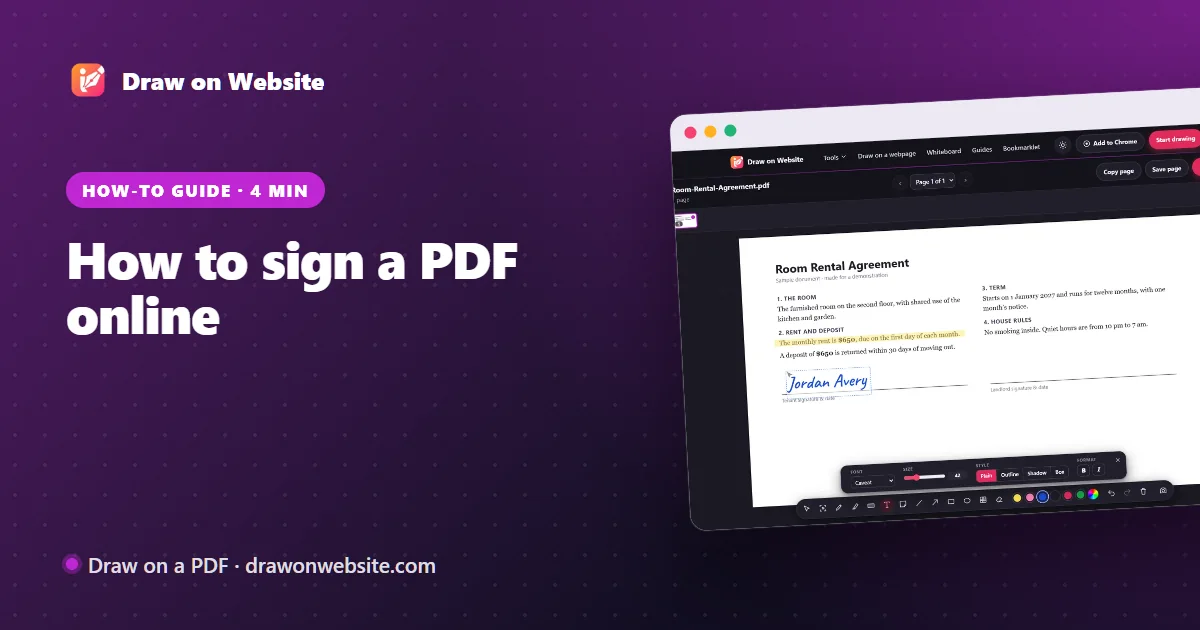
Signing a PDF in the browser takes a couple of minutes. You open the file, put your name on the line, fill in the date and save a new copy. The steps below use Draw on a PDF, which opens the file on your own device instead of sending it to a server.
Open the PDF and find the signature line
Click Choose a PDF or drop the file onto the page. If the PDF has a password, you’ll be asked for it. Use the page strip at the top, or the arrows next to the page number, to go to the page where you need to sign. Each page keeps its own marks, so you can jump back and forth.
Two ways to put your signature down
Draw it
Pick the Pen (D) and choose the dark blue or the near-black colour. Then sign on the line. On a phone or tablet your finger works fine, and with a stylus the line gets thicker when you press harder, which looks closer to real ink.
A mouse is the hard case. Signatures drawn with a mouse often look shaky, especially when they are small. Sign much bigger than the line, in empty space on the page, then switch to Select (V) and shrink it down onto the line. It looks a lot steadier at the smaller size.
Type it in a handwriting font
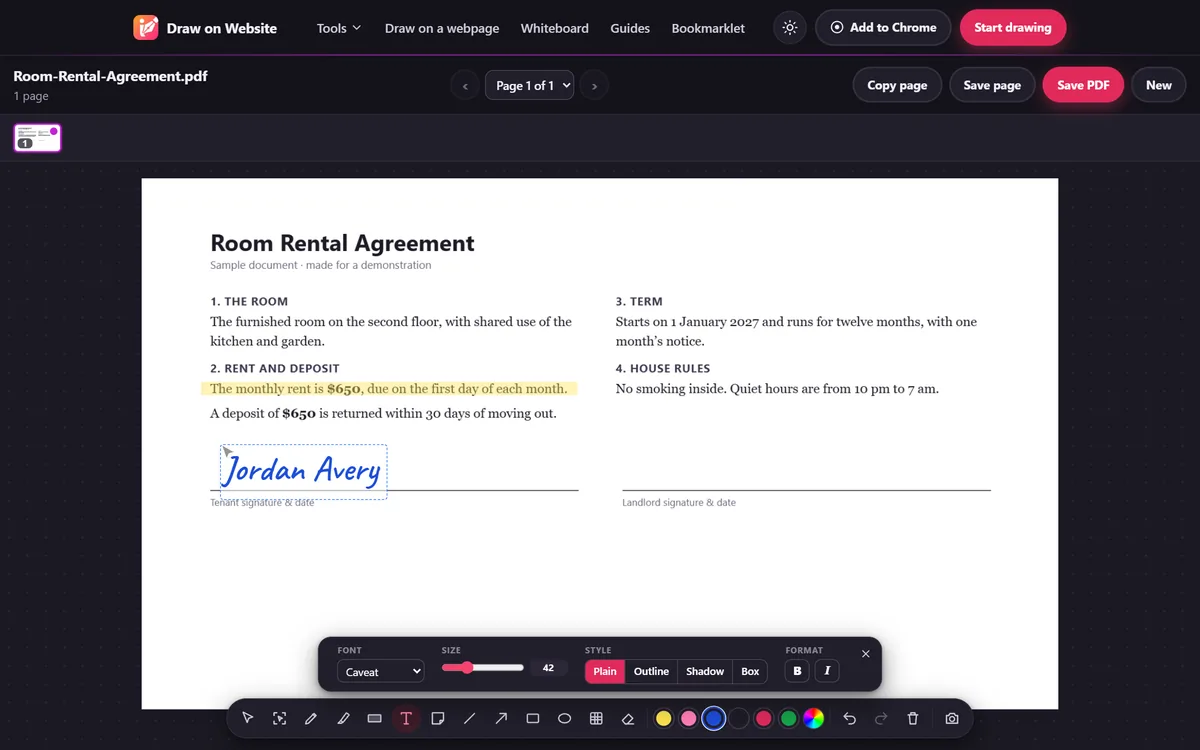
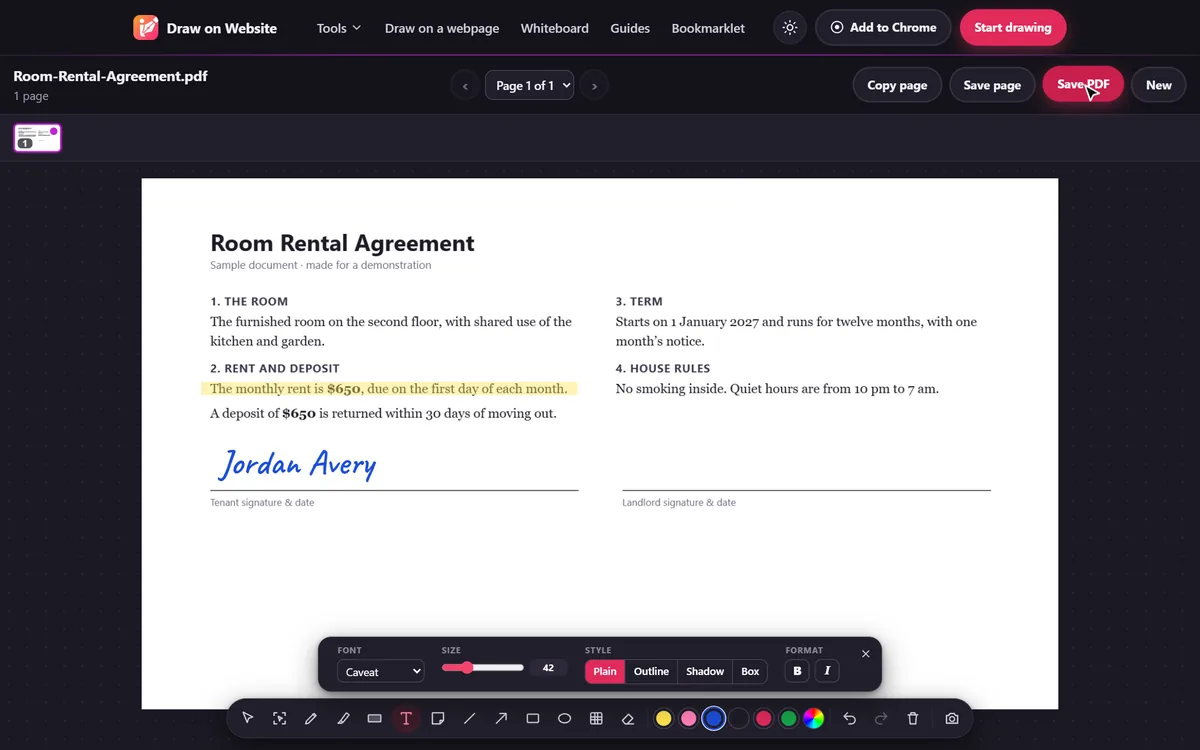
Press T for Text, click on the signature line and type your name. In the options bar, open Font and choose Caveat or Pacifico. Both look handwritten. Use Size to make it fit the line. Blue is a nice touch, because it reads as “signed” rather than “printed”.
Fill in the date and anything else
Most forms want more than a signature. Stay on the Text tool and click wherever you need to write: the date, your printed name, an address. Switch the font back to Sans or Serif for these, so they look like normal typing next to your handwritten-style signature.
The tool opens with the Highlighter picked, which is handy before you sign. Mark the rent amount or the notice period so you can check them one more time.
Save it and send it back
Click Save PDF. Every page goes into one new PDF with your marks on it, at the same page size as the original, so it prints the way it did before. The original file on your computer is not changed.
One thing to know before you send it: the saved pages are pictures. The text in the new PDF can no longer be selected, searched or copied. For a signed agreement that is usually fine, and it also means nobody can lift your signature out as a separate piece. If the other side needs to edit the text afterwards, they still have their original.
Hide what they don’t need to see
If the form asks for a bank account or ID number that you would rather not email, cover it before saving. Choose the blur tool, keep Black bar as the effect and drag over the number. Because the page becomes a picture when you save, the text under the bar is really gone, not just hidden. Our guide on how to redact an image explains why that matters.
Will this signature count?
In many countries a drawn or typed signature is accepted for everyday paperwork like rental forms, school permission slips and simple contracts. Some documents need a certified digital signature, a notary or a wet-ink signature instead. We can’t give legal advice, so if you’re not sure, ask the person who sent you the document what they accept.
Free, no account needed. Your file stays on your device.
Sign your PDFQuestions
Can I sign a PDF on my phone?
Yes. Open the page in your phone’s browser, choose the PDF and sign with your finger using the Pen. Then tap Save PDF.
Will the text in my PDF still be selectable after signing?
No. Pages are saved as pictures with your marks on them, so the text can’t be selected or edited in the new file.
Can I sign a PDF with many pages?
Yes, up to 200 pages. Move between pages with the page strip and sign or initial each one you need to.
Can I reuse my signature next time?
There is no saved signature stamp. Typing your name in Caveat or Pacifico is the quickest way to get the same look every time.