How to draw together online
A tutor and a student working on the same geometry problem from two different towns. A team planning a launch on one mind map. Both just need a board everyone can draw on at once.
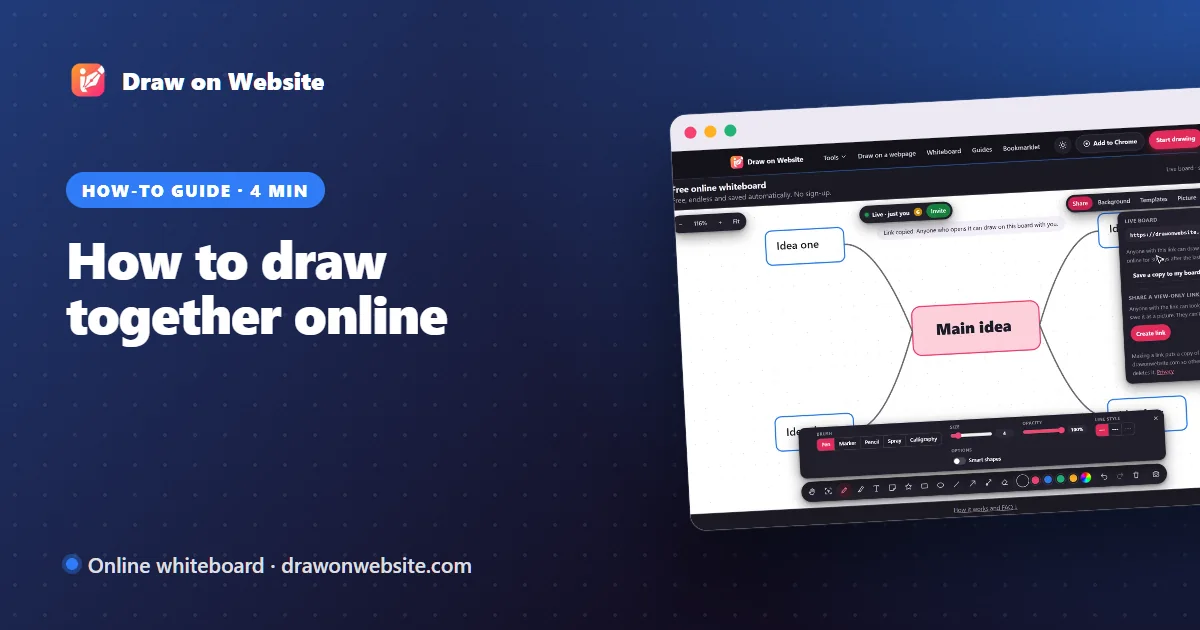
A live board is a normal board with a link. Everyone who opens the link draws on the same board, and you see their strokes while they draw them. Nobody needs an account or an app, only a browser.
Get the board ready first
Open the online whiteboard. Live boards also work on the blackboard and the graph paper, so pick whichever suits the session.
You don’t have to start empty. Whatever is on your board when you go live comes along, so you can set things up beforehand: add a template from Templates, write the question at the top, or paste in a picture to talk about. That saves the first five minutes of the call.
Start the live board and send the link
- Click Share in the bar above the board.
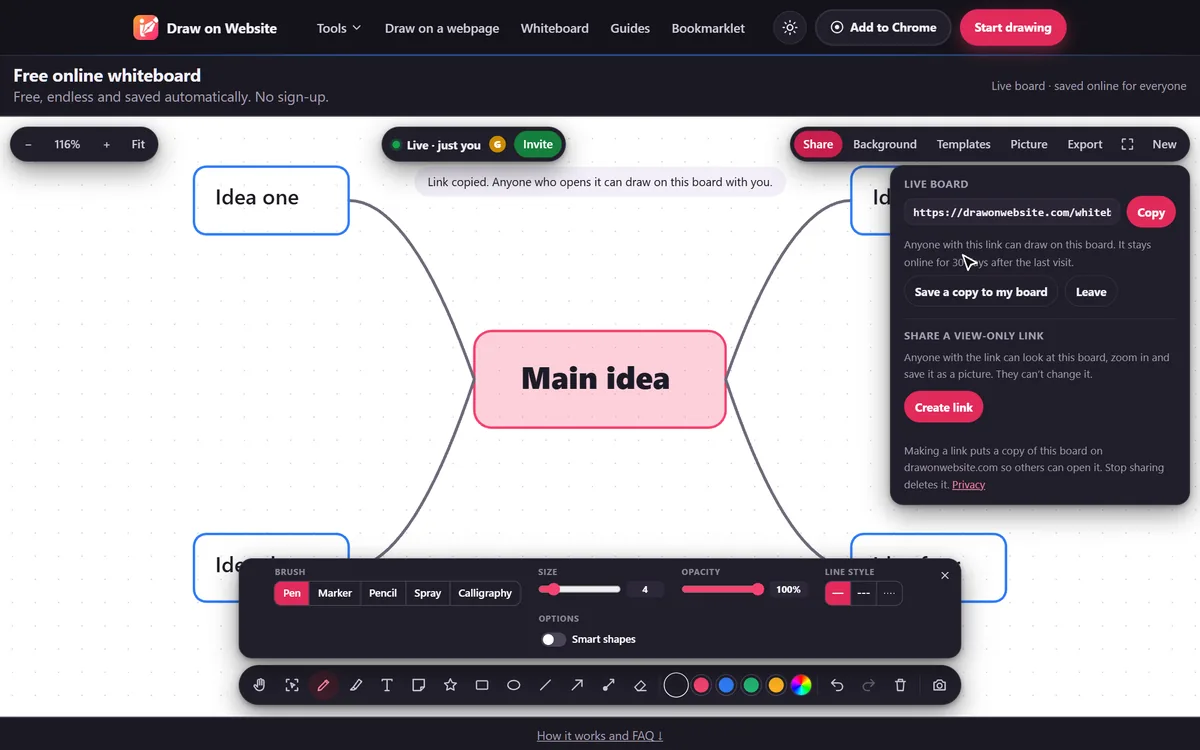
- Under “Draw together, live”, click Start a live board. The link is copied for you.
- Paste the link into your chat, email or meeting. Anyone who opens it lands on the same board.
The Share panel now shows the live link with a Copy button, in case you need it again. A Live badge appears at the top of the board, with an Invite button that copies the link too.
What it looks like with more than one person
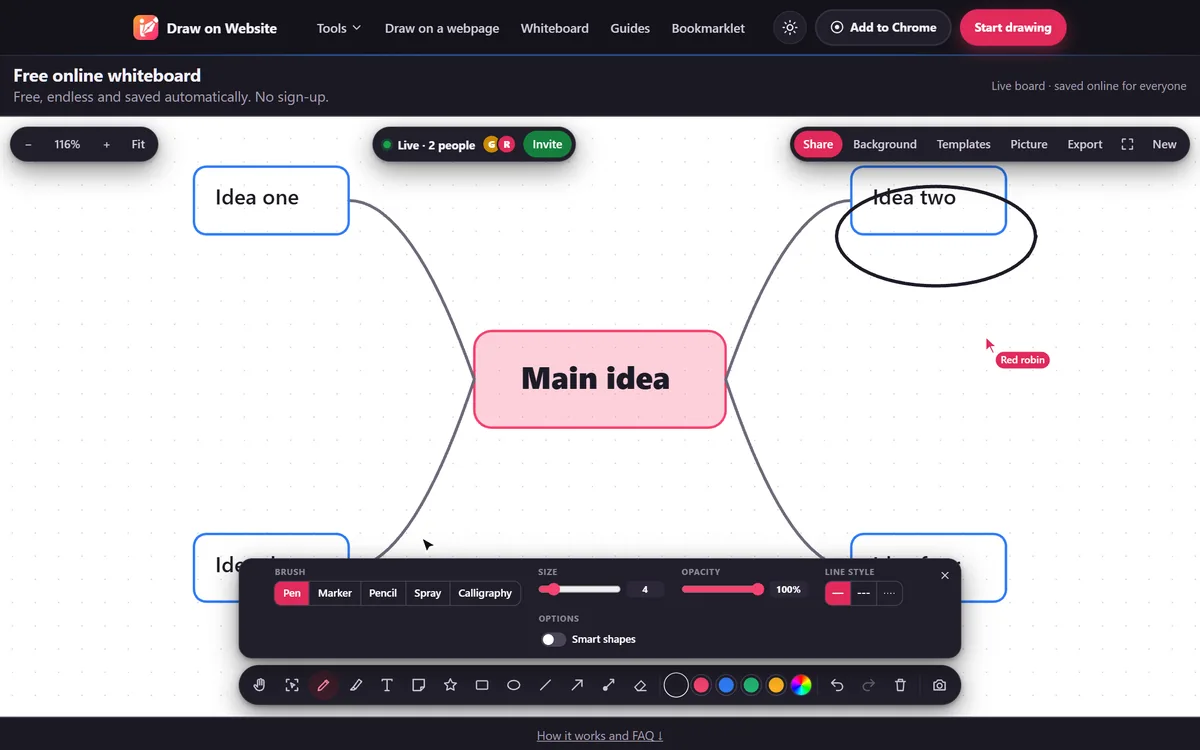
Each person gets a random name and colour, like “Blue fox” or “Golden owl”. Their cursor carries that name, so you can see who is pointing where. The badge changes to show how many are there, for example “Live · 2 people”, and you get a short note when someone joins or leaves.
Undo works per person. When you press Ctrl+Z, it only takes back your own changes, never something another person drew. That sounds like a small thing, but it is what stops two people from undoing each other’s work by accident.
A few habits that help
Agree on colours at the start. Most people never change the pen colour, and after ten minutes nobody remembers who wrote what. On a planning board, sticky notes (N) are easier to move around than handwriting.
The laser pointer (Q) is worth knowing about. It shows a trail that fades by itself, so you can point at something without leaving a mark on a board other people are using. Talking is still easier than typing, so keep a voice or video call open alongside the board.
Limits worth knowing
Anyone with the link can draw on the board and change things. Only send it to the people you mean to invite, and don’t put passwords or private details on it. Up to 25 people can be on one board at the same time.
A live board is kept online until nobody has opened it for 30 days, then it is deleted. To keep your own copy, click Save a copy to my board in the Share panel. It replaces the board saved in your browser, and you’ll be asked first if that board isn’t empty. Leave takes you back to your own board, and the live one stays open for the others.
If people only need to look, not draw, use Create link under “Share a view-only link” instead. They can zoom in and save the board as a picture, but they can’t change it. Presenting to a group rather than drawing with them? See how to draw on your screen during a presentation.
Open the whiteboard, click Share, then Start a live board. No sign-up.
Start a live boardQuestions
Do the other people need an account?
No. They open the link in their browser and can draw straight away.
Does it work on phones and tablets?
Yes. Open the link in the phone or tablet browser and draw with a finger or stylus.
Will joining someone’s board change my own whiteboard?
No. The board saved in your browser stays as it is, unless you click Save a copy to my board.
What happens when the board is full?
If 25 people are already on it, the next person sees a message that the board is full. A single board can also hold up to 20,000 items.