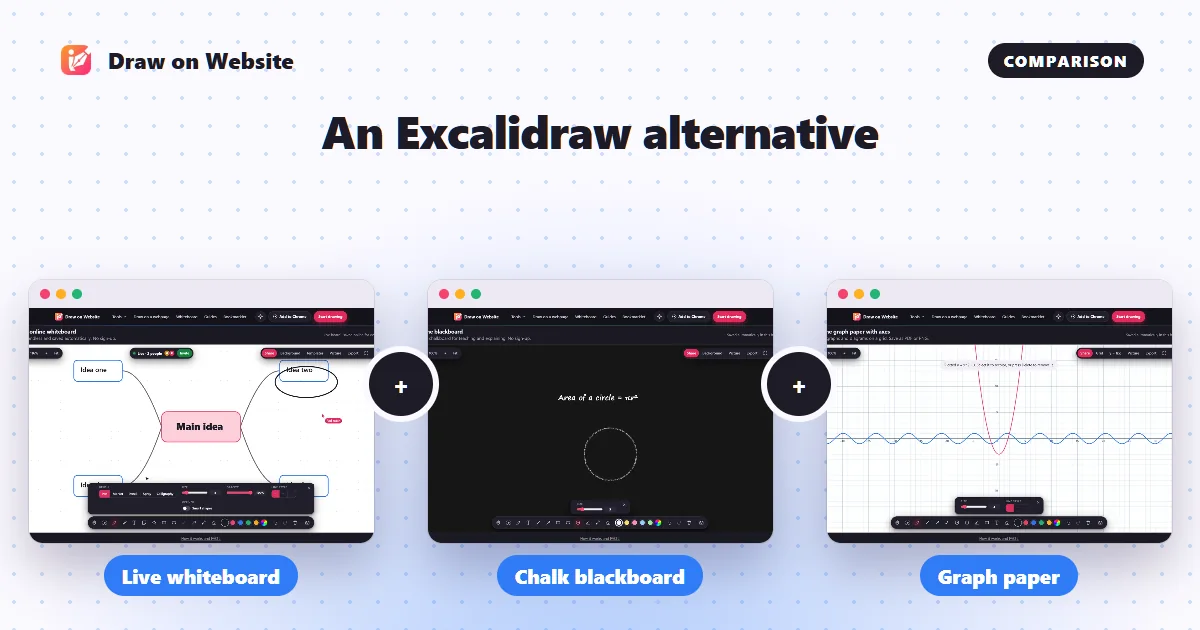
Whiteboard vs blackboard vs graph paper
A team planning a launch, a teacher explaining the area of a circle and a student plotting y = sin(x) all need somewhere to draw. They don’t need the same tools. That is why the site has three boards instead of one.
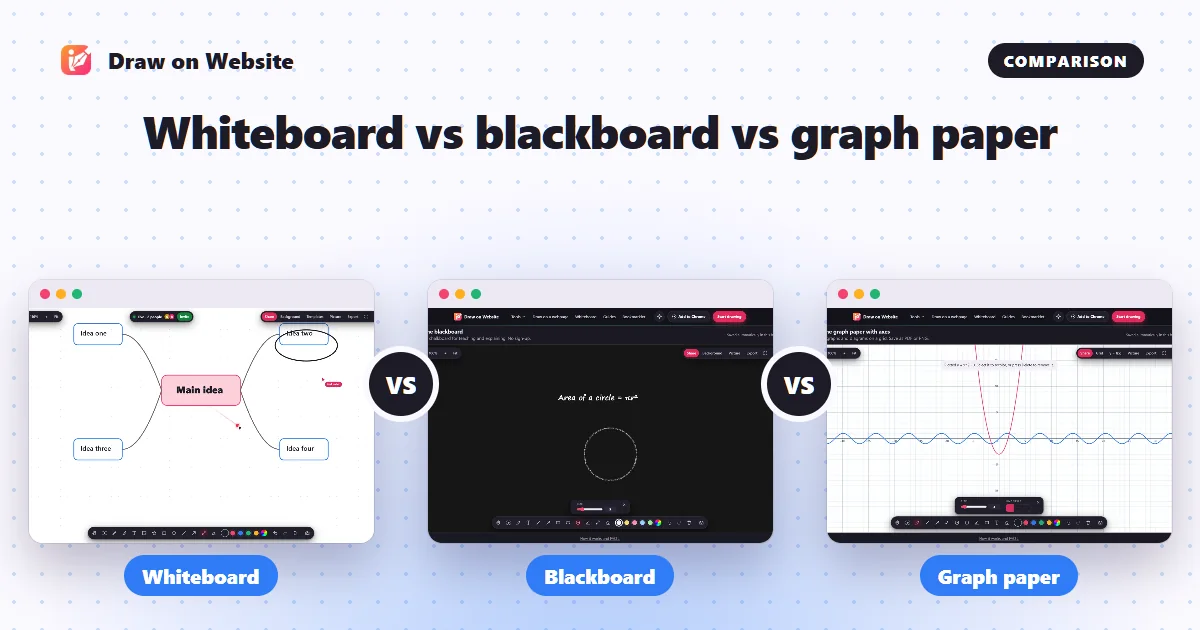
All three share the basics. Each board is endless, so you scroll and zoom instead of running out of room. Your work saves itself in your browser. You can go full screen, export a PNG or PDF, send a view-only link or start a live board that others draw on with you. The difference is in the tools each board puts in front of you.
The whiteboard: for ideas, plans and meetings
Pick the whiteboard when the content is words and boxes. It has sticky notes, shapes such as stars, diamonds and speech bubbles, and Smart shapes, which turn a rough circle or box into a neat one. Templates starts you off with a Kanban board, SWOT analysis, mind map, flowchart, weekly planner or brainstorm.
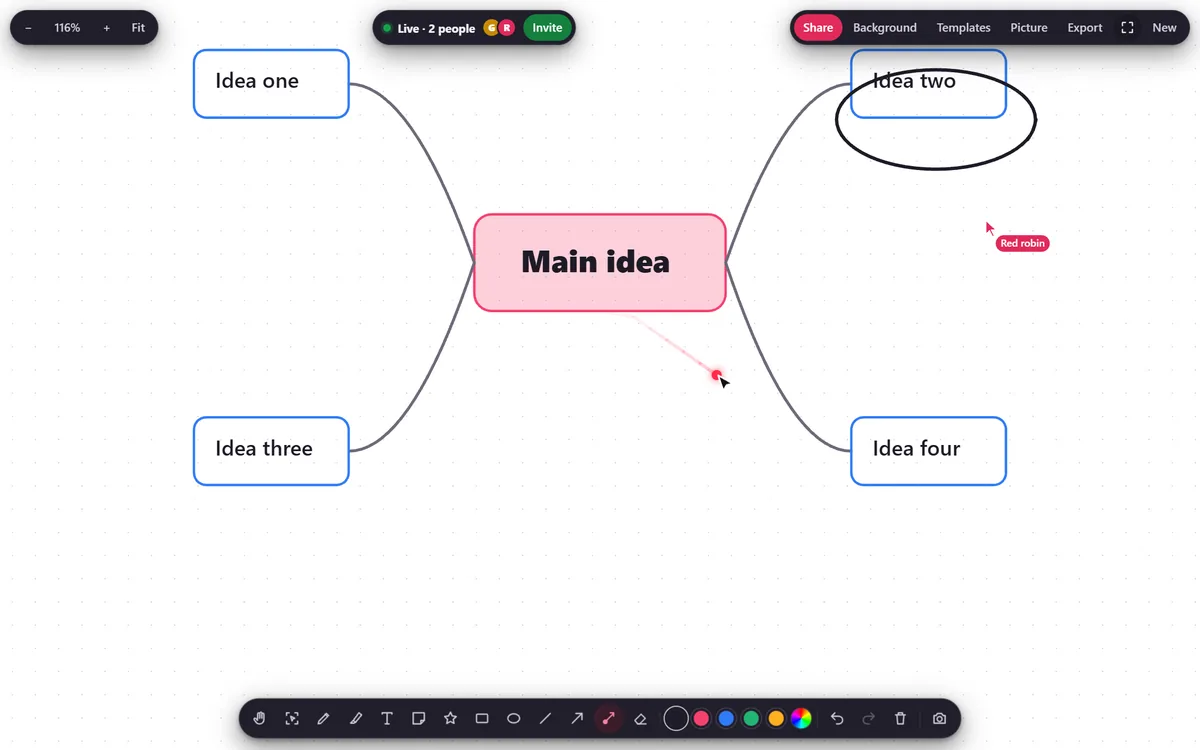
The background can be white, cream, dark or any colour, with dots, a grid, ruled or music staff lines, or a picture of your own. It is the most general of the three, so if you are unsure, start here.
The blackboard: for teaching to a room
Choose the blackboard for lessons on a projector or smart board, or a shared tab in a video class. Chalk on a dark board reads well from the back of a room, and the strokes have a grainy chalk look in white, yellow, pink, blue or green. The board can be slate green, classic green, black, blue or brown.
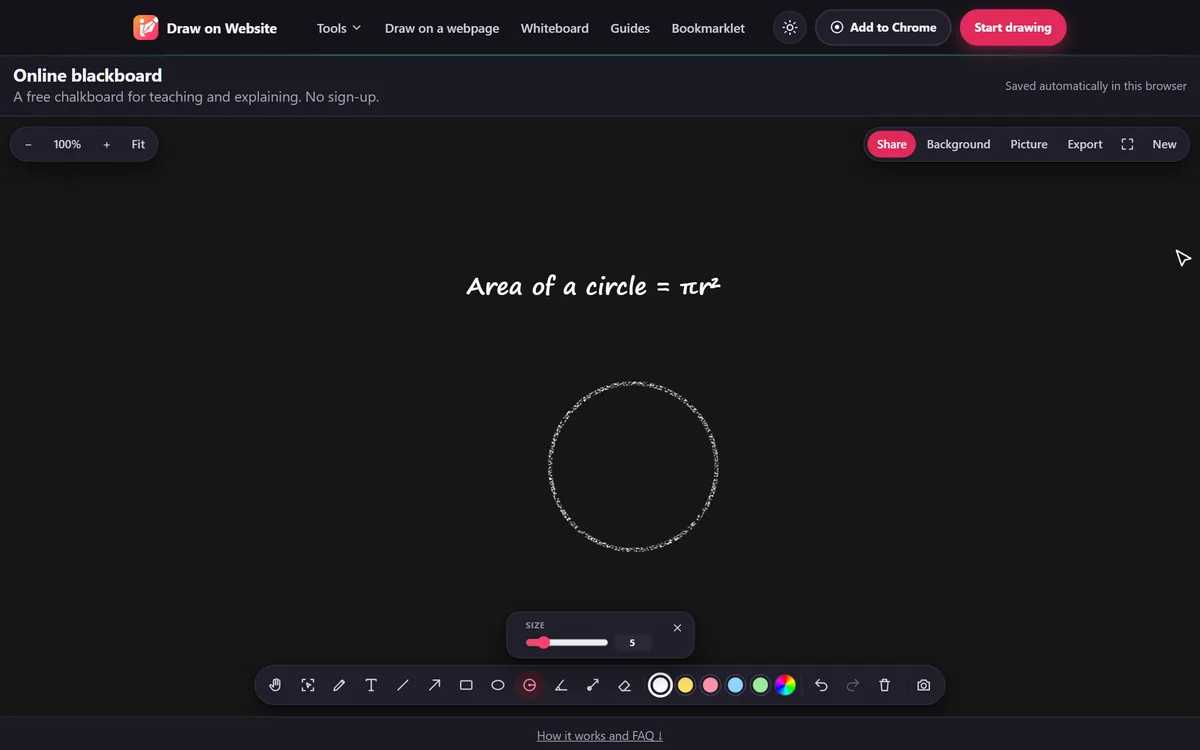
Its special tools are for geometry. The compass (C) draws a circle from its centre, and the protractor (J) measures an angle from three clicks. It has no sticky notes or templates, which keeps the toolbar short while you teach.
Graph paper: for anything with numbers
Use graph paper when position matters. It has numbered axes, and points and shapes snap to the grid. Type a function like y = x^2 − 3 or sin(x) and it is plotted. Points show their coordinates, lines show length, slope and angle, and polygons show their area and perimeter.
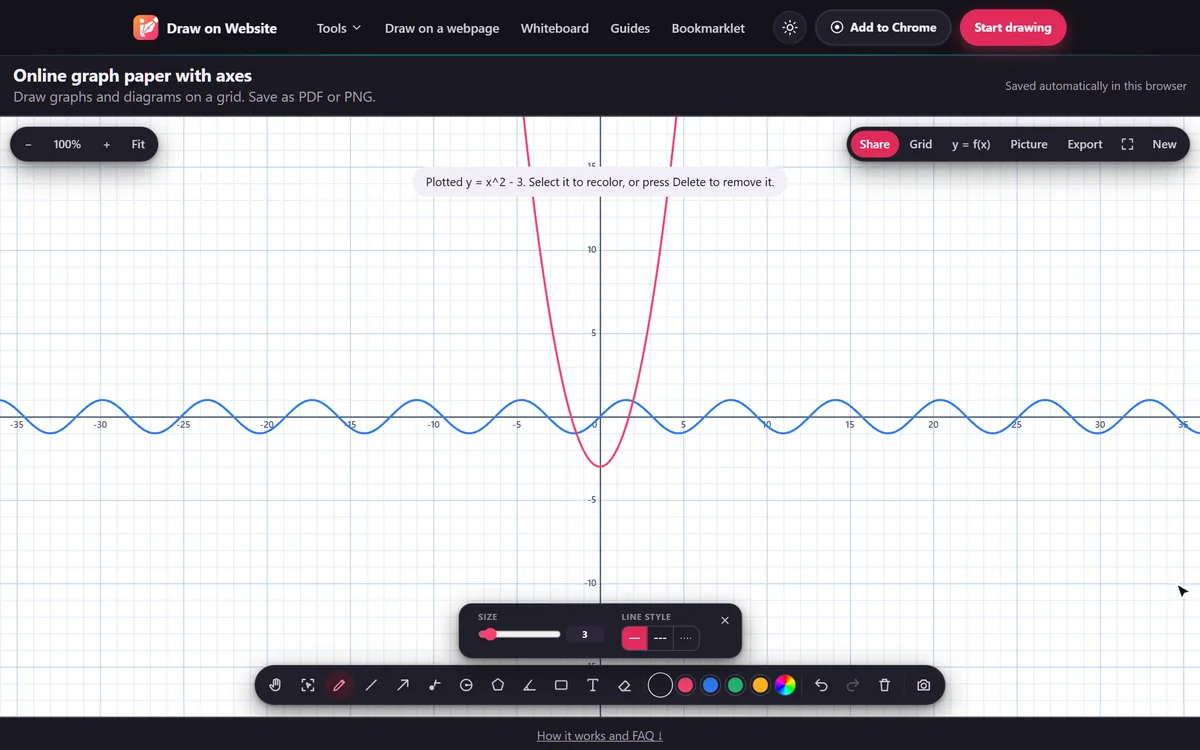
The grid can be squares, dots, isometric or polar. And it is the only board that prints blank paper: Download blank PDF gives you A4 or Letter sheets for a worksheet or homework. The guide on how to print graph paper walks through it. Graph paper leaves out the laser pointer and sticky notes.
Still not sure?
- Planning, brainstorming or explaining on a call: the whiteboard.
- Teaching in front of a class, especially geometry: the blackboard.
- Plotting, measuring or printing squared paper: graph paper.
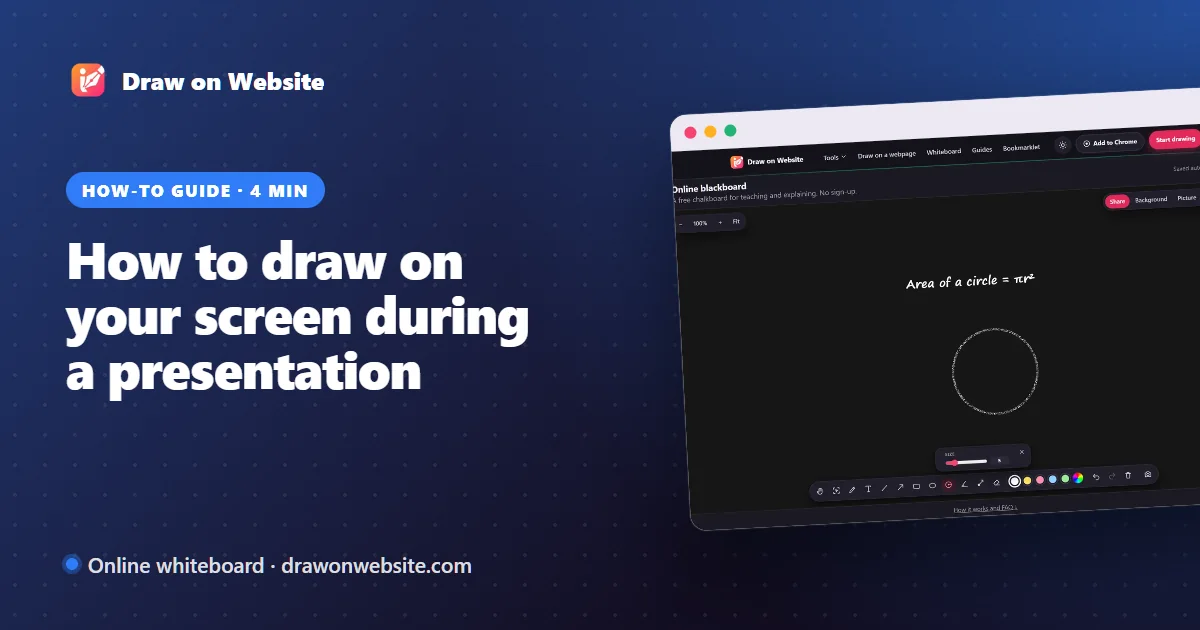
Nothing stops you from using two. A maths teacher might teach on the blackboard and hand out graph paper for practice. Each board keeps its own work, so switching doesn’t lose anything. For tips on presenting with any of them, see how to draw on your screen during a presentation.
One thing to know before you start
Your browser keeps one saved board of each kind: one whiteboard, one blackboard and one graph paper. That is plenty for a running lesson or a project you keep coming back to. But there is no list of older boards to go back to, so before you clear one to start something new, export a PNG or PDF of what you want to keep. Saved boards also live on that one device, so the board on your school computer won’t appear on your laptop at home. A view-only link or an exported file is the way to carry it across.
Or go straight to the blackboard or graph paper.
Open the whiteboardQuestions
Are my boards saved?
Yes, automatically, in your browser on that device. Export a PNG or PDF to keep a copy somewhere else.
Can other people draw on my board with me?
Yes, on all three. Click Share, then Start a live board, and send the link. Up to 25 people can draw at once.
Which board is best on a projector?
The blackboard reads best from a distance. The whiteboard with a dark background works well too. All three have a full-screen button.