Pixelate vs blur vs black bar
You are about to post a screenshot and there is a phone number in the corner. Or a photo from a party with a friend who didn’t want to be online. All three effects hide things, but they don’t hide them equally well.
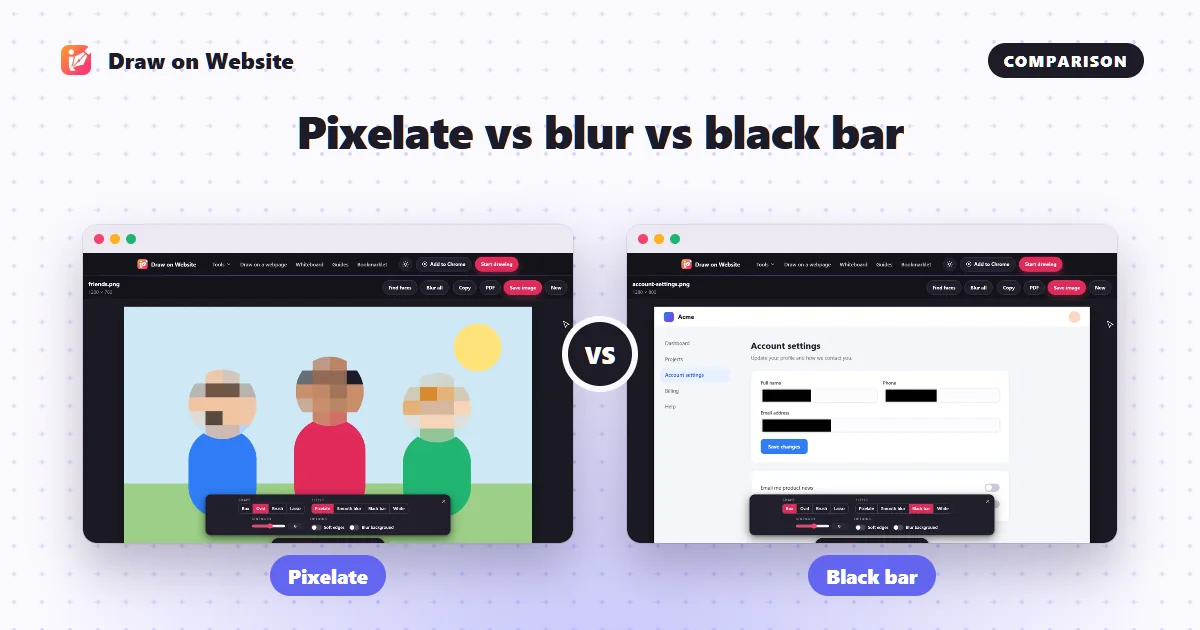
The rule I use is simple. If it is text that matters, cover it with a black bar. If it is a face or a background, pixelate or blur it strongly. The rest of this page explains why, so you can make the call yourself.
Text: use a black bar
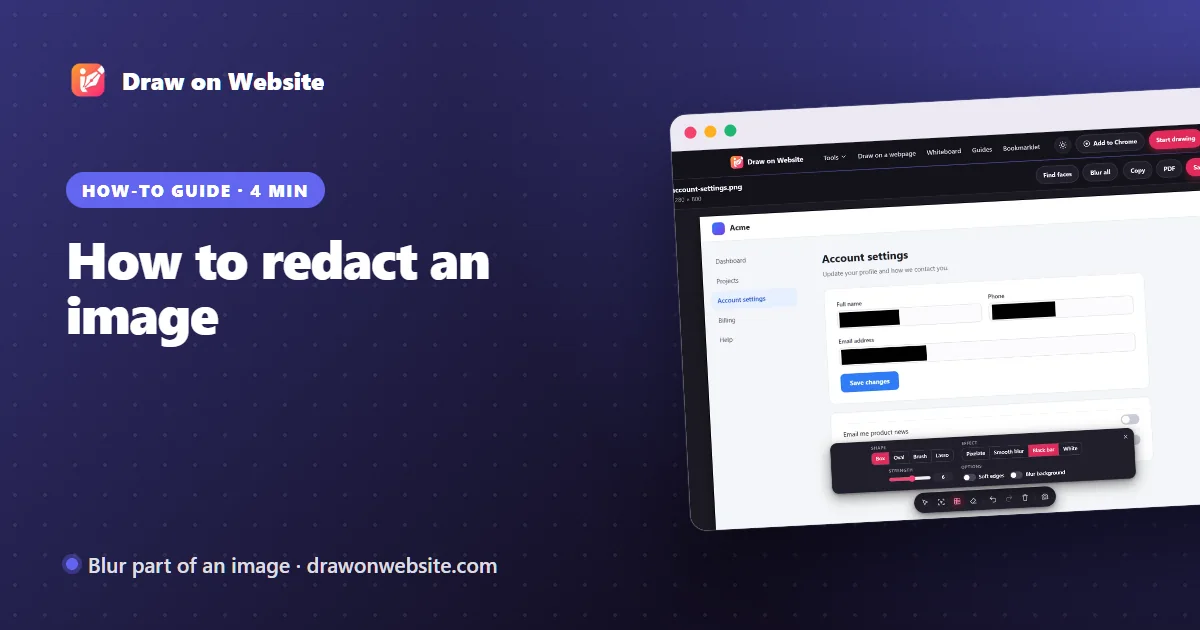
Passwords, card and account numbers, email addresses, order numbers and addresses all belong under a solid bar. A black bar replaces those pixels with plain black. There is nothing left in the picture to work from.
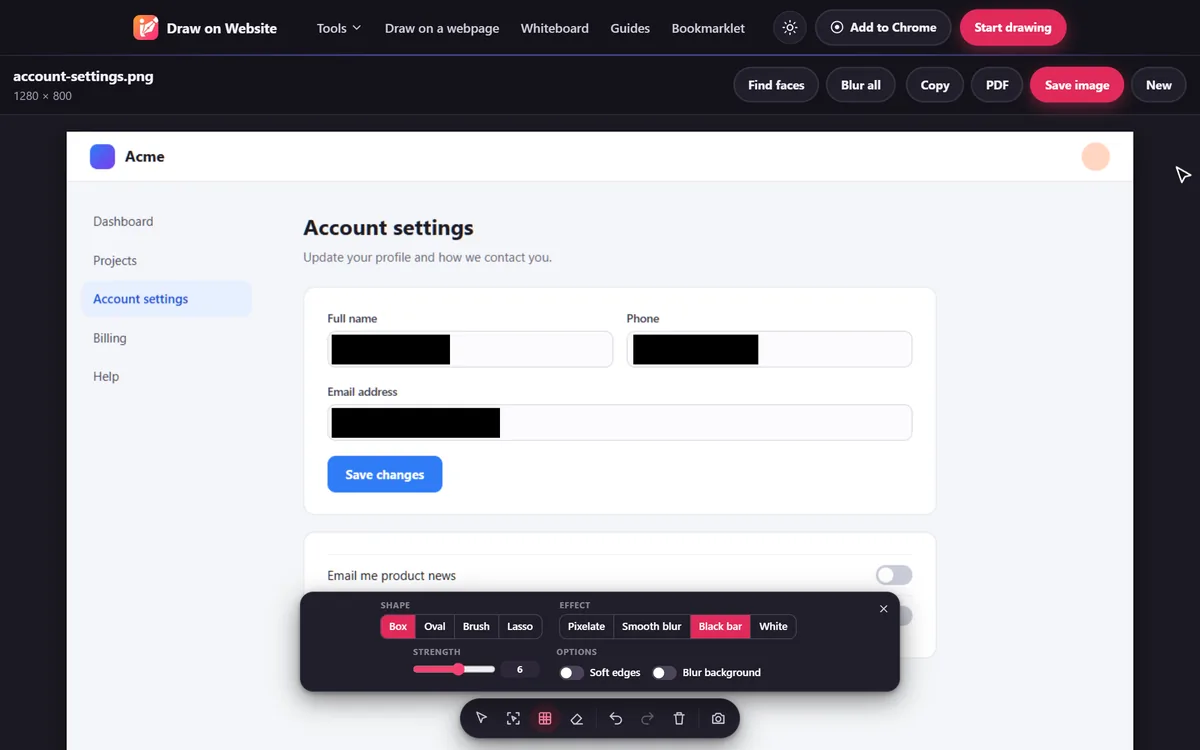
Pixelating text looks tidier, and for a long paragraph you just don’t want people reading, it is usually fine. The problem is short, predictable text. Pixelation turns each block into the average colour of what was underneath. If someone knows the font and size, they can pixelate every possible number the same way and see which one matches. People have recovered pixelated text like this, and a light blur can leak in a similar way.
A higher strength makes bigger blocks and leaves less to match. It helps, but it is not a guarantee. A card number has very few possible characters, which is exactly what makes it guessable.
Faces: pixelate or blur, and make it strong
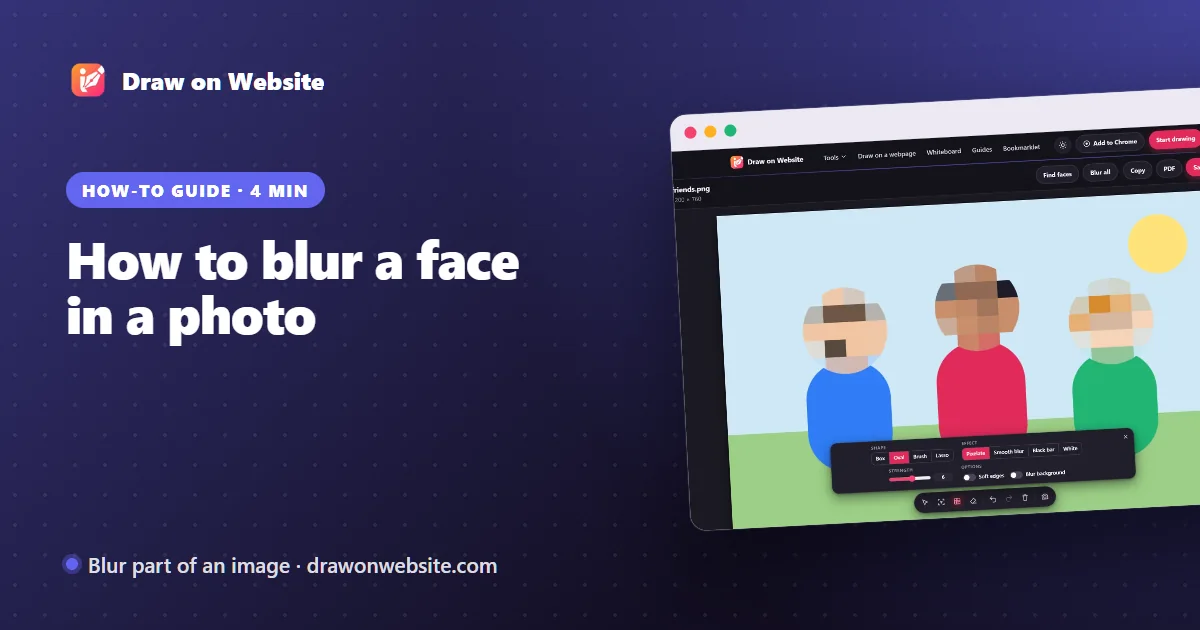
Faces are different. There is no small set of letters to try, so a strong pixelate or smooth blur is usually enough, and it looks far better in a photo than a black rectangle. Cover the whole head, including hair, and check for anything else that gives the person away, such as a name badge, a tattoo or a school logo on a jumper.
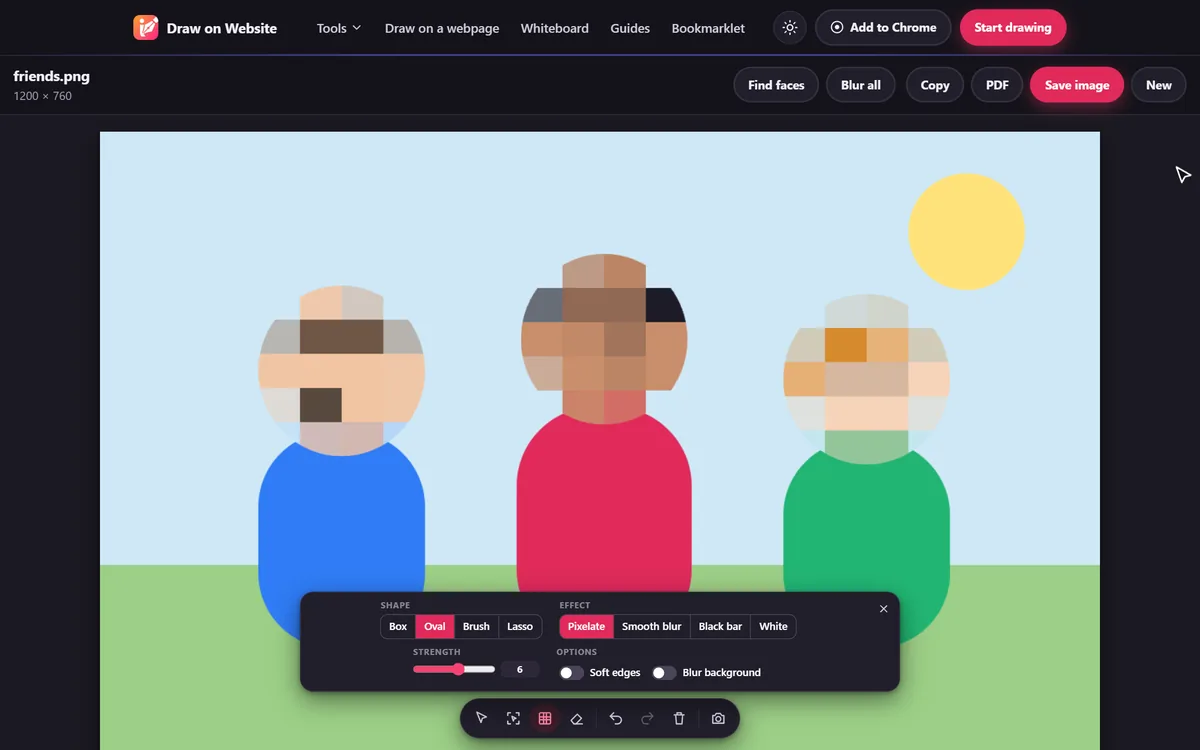
On the blur tool, Find faces looks for faces and blurs them for you. It runs on your device. It can miss a face that is turned away or half hidden, so look over the result before saving.
Backgrounds: smooth blur
For a messy room behind you or a busy street, a smooth blur keeps the photo looking natural. Turn on Blur background and mark the part you want to keep sharp instead. This is about looks, not secrecy, so don’t rely on it to hide a house number.
Where to find each one
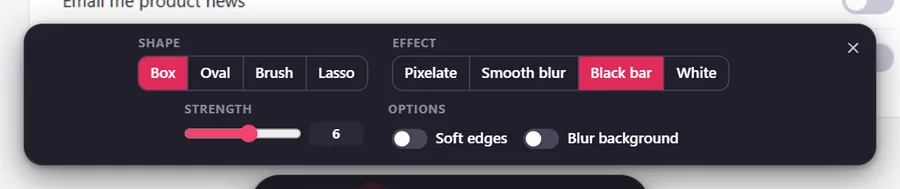
All four effects live in the same options bar. Pick a Shape (Box, Oval, Brush or Lasso), then an Effect: Pixelate, Smooth blur, Black bar or White. Strength controls how heavy pixelate and blur are. White is handy on a white page, where a black bar would stand out.
| What you are hiding | Use | Why |
|---|---|---|
| Passwords, card and account numbers | Black bar | Short, known characters can be guessed from blocks |
| Names, emails, addresses | Black bar | Same reason, and they are easy to check |
| Faces | Strong pixelate or smooth blur | Looks natural and has nothing to match against |
| Number plates | Black bar or very strong pixelate | Few possible characters |
| A messy background | Smooth blur | Keeps the photo pleasant to look at |
Make sure the original isn’t still in the file
The effect only protects you if the hidden part is really gone. When you click Save image, our tool writes a new flat picture, so the original pixels are not inside it. Apps that save layers can keep the original under your box, and a black box drawn on top of a PDF may leave the text underneath. Then check you are attaching the new file, not the original. For PDFs, see how to redact an image, which also covers Draw on a PDF.
Pixelate, smooth blur, black bar or white. It all happens in your browser.
Blur or black out an imageQuestions
Is a black bar always safe?
In a flat picture like a PNG from our tool, yes, because the pixels under it are replaced. In PDFs or apps with layers, a box on top can sometimes be removed, so save a flat image.
What strength should I use for faces?
One where you can’t tell who it is when the picture is at full size. If you know the person and can still recognise them, go stronger.
Is pixelate safer than blur?
Neither is safe for short text. For faces, both work if they are strong. Pick whichever looks better in your picture.