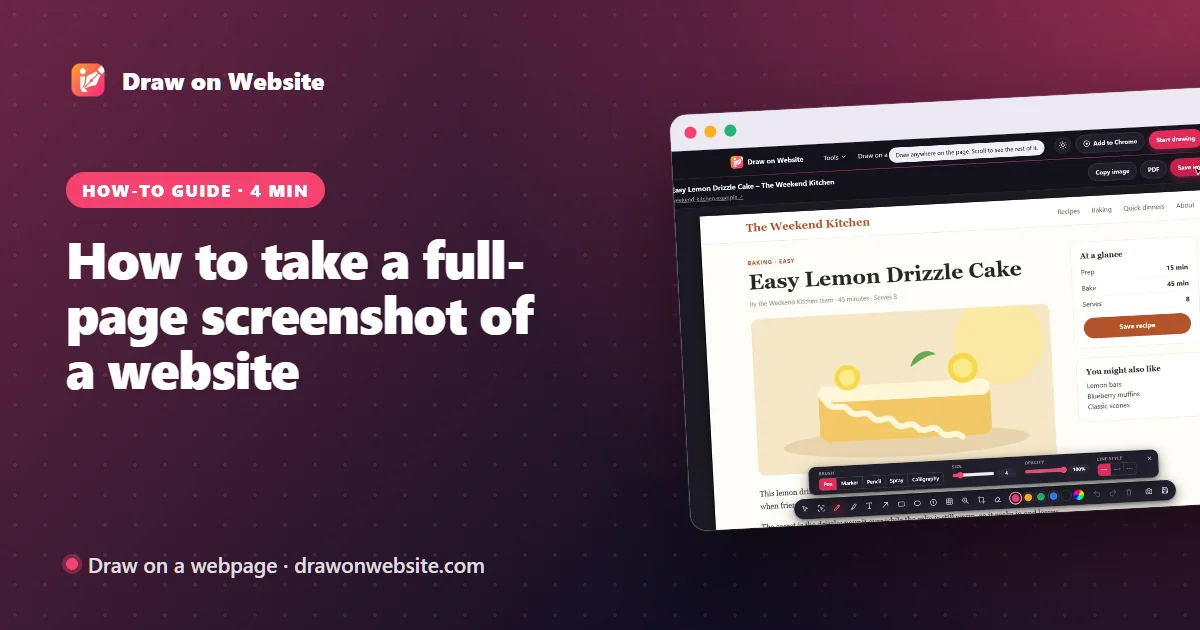
How to take a full-page screenshot of a website
You want to keep a long article, or show a designer the whole landing page, and a normal screenshot cuts it off halfway. Stitching five screenshots together is no fun. A full-page screenshot gets everything in one picture.
Paste the link and get the whole page
This is the way we use most, because it works the same in every browser and on a phone. We built the page capture on Draw on a webpage for exactly this.
- Copy the address of the page.
- Paste it into the box on Draw on a webpage and click Draw on it. Pick Desktop or Phone to choose which version of the site you get.
- Wait a few seconds while our server opens the page and scrolls all the way down.
- The whole page appears as one tall picture.
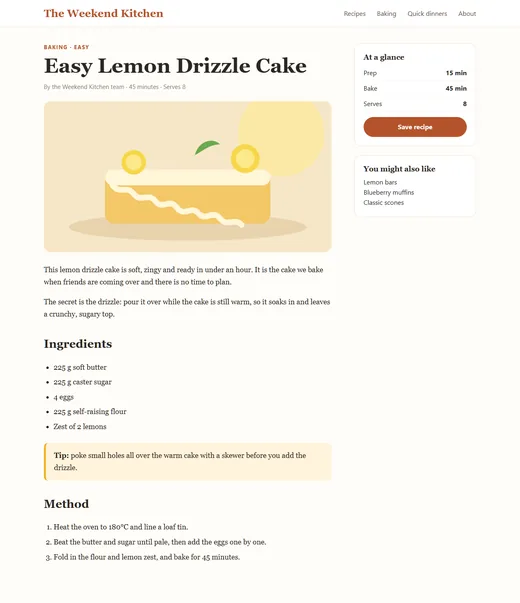
You don’t have to draw anything. If you just want the picture, go straight to the buttons at the top right. Save image downloads a PNG, PDF gives you a single-page PDF, and Copy image puts it on your clipboard so you can paste it into an email, a chat or a document.
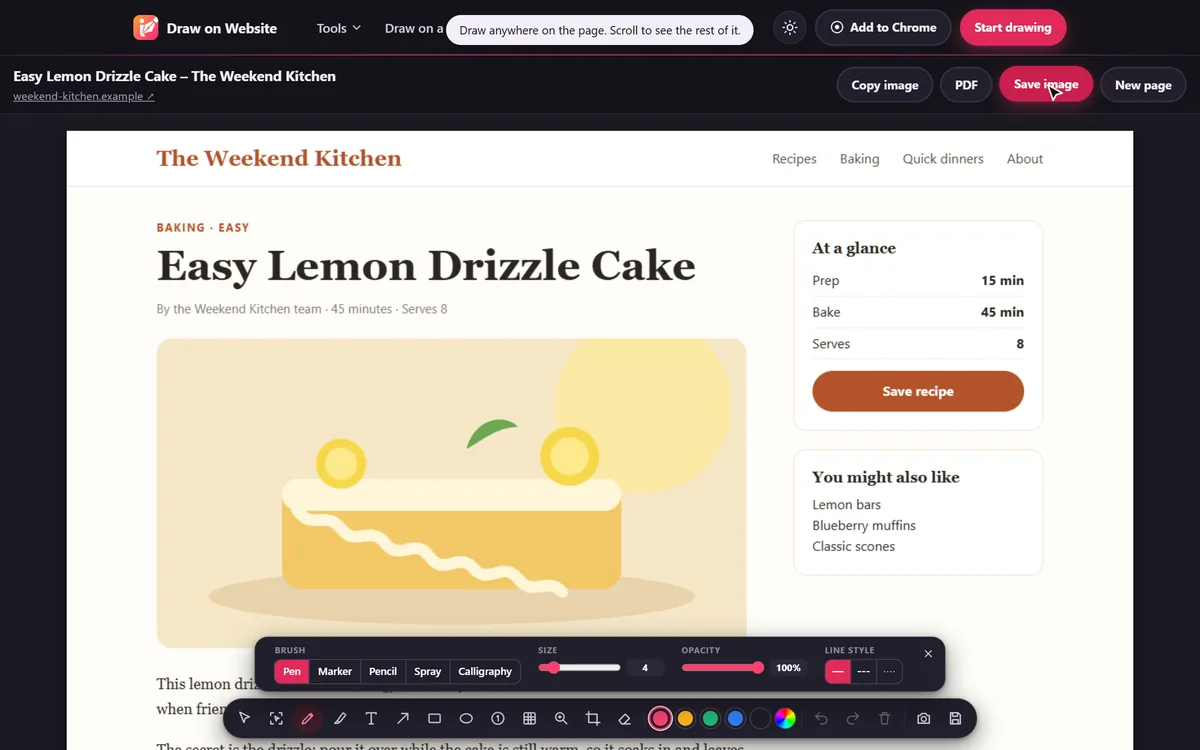
Want to point something out first? The drawing toolbar is right there. An arrow and a few words, or a highlight over the line that matters, turns a plain capture into something people understand at a glance. The guide on drawing on a website goes through the tools.
What this way can’t do
The page is opened as a visitor who isn’t signed in. Anything behind a login, like your email or a company dashboard, will show the login screen. Very long pages are cut off after 8,000 pixels, and a very heavy page may be cut off sooner. The PDF holds a picture of the page, so you can’t select or search the text in it.
Use the screenshot tool in your browser
For a page you are logged in to, your browser can usually do it itself. It captures the page exactly as you see it, with your account and your settings.
In Edge, press Ctrl+Shift+S and choose “Capture full page”. In Firefox, right-click an empty part of the page, choose “Take Screenshot”, then “Save full page”. Chrome hides it in the developer tools: press F12, then Ctrl+Shift+P, type “full size screenshot” and press Enter.
To mark up the file you get, open it on Annotate a screenshot. It has arrows, numbered steps and a blur tool for hiding names and numbers.
When the picture comes out wrong
Some sites only load their images as you scroll down. If yours has grey boxes where the pictures should be, scroll to the very bottom of the page in your browser first, then capture it.
Menus that stay stuck to the top of the screen can show up more than once in a browser’s own full-page capture. Cookie banners are another common problem. Close them before you capture, or cover them afterwards.
Paste a link and get the whole page in one picture. No sign-up.
Capture a full pageQuestions
Is there a watermark?
No. The image you save is just the page, plus anything you drew on it.
Can I capture a page that needs a login?
Not by pasting the link, because the page is opened as a signed-out visitor. Use your browser’s own full-page capture instead.
PNG or PDF?
PNG keeps the text sharp and is easy to paste into chats. PDF is handy for printing or attaching as a document, but the text inside it is a picture and can’t be selected.