Visual feedback for websites
The client writes: “The thing at the top feels off.” You ask which thing. Two days and six emails later, it turns out they meant the gap under the logo. One marked-up picture would have settled it on day one.
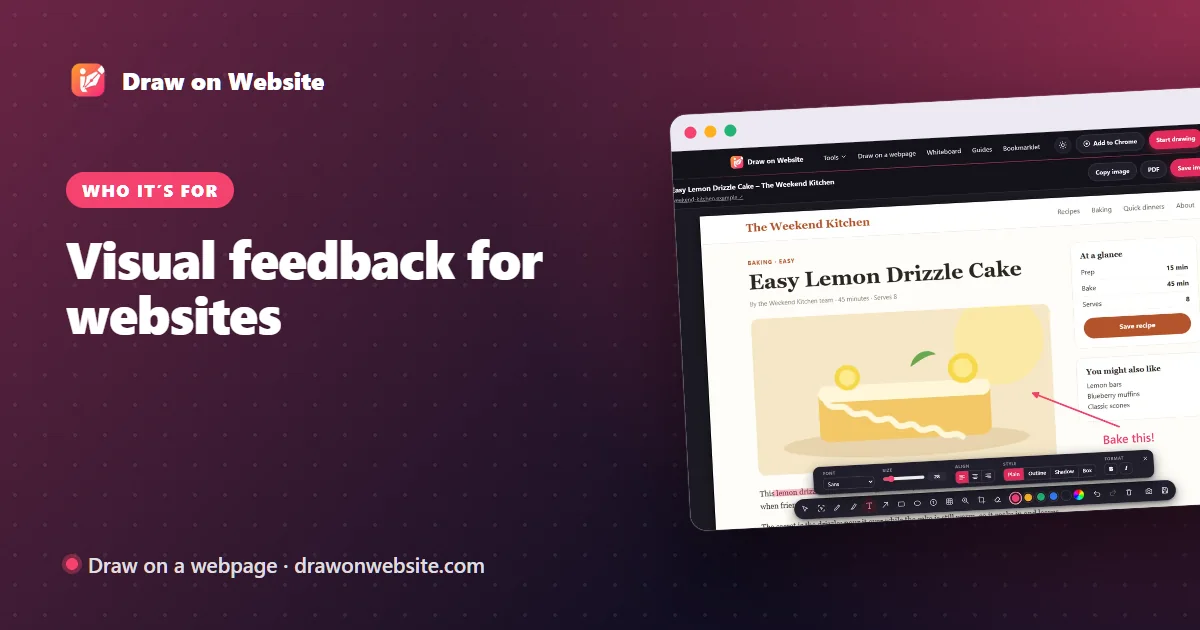
Website reviews go wrong in the same place every time: words are vague about position. “Left”, “that button” and “the bit below” mean different things to the person writing and the person reading. Drawing on the page fixes the position problem, so the words can be about what should change.
Review the whole page in one picture
For a public page, start on Draw on a webpage. Paste the address and click Draw on it. We open the page on our server and give you one tall picture of it, top to bottom. Choose Phone first if you are reviewing the mobile layout, which is where most layout bugs live.
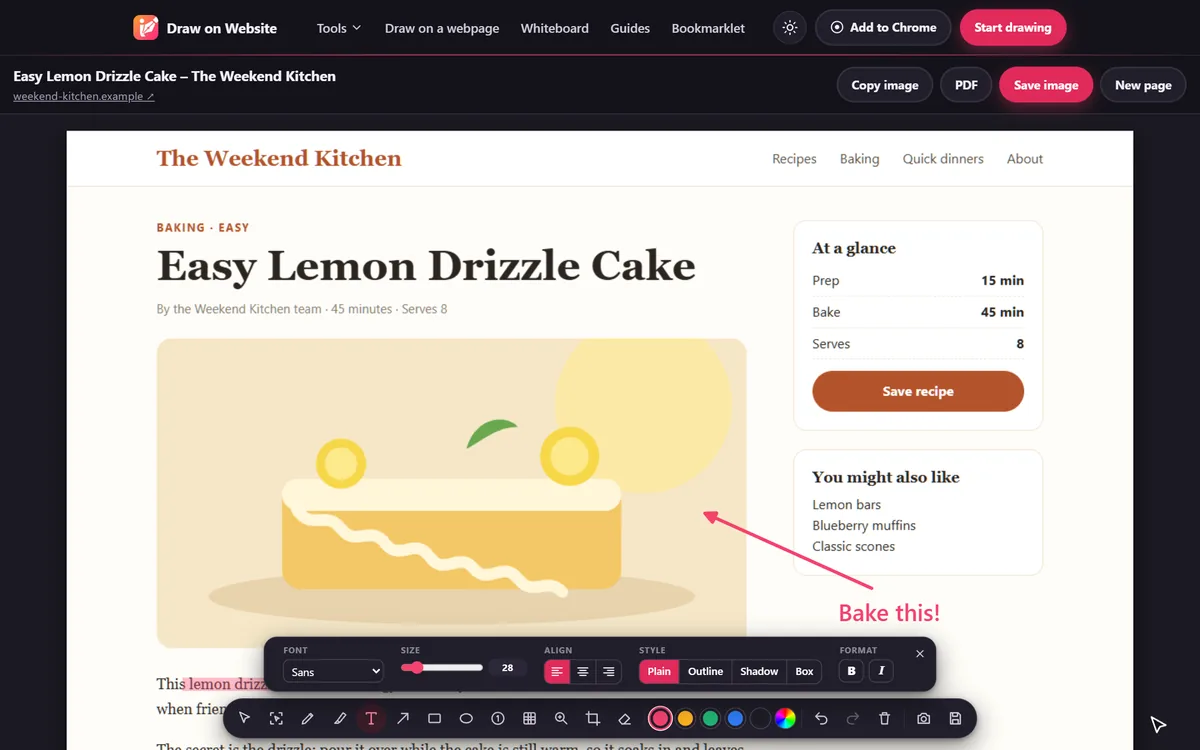
Then mark each problem with Numbered steps (S). One number per issue, nothing more. Write the details in the ticket or email as a numbered list that matches. Click Copy image and paste the picture into Jira, Linear, GitHub, Trello, Slack or an email. PDF is useful when a client wants something to file.
Two limits matter here. The page is opened as a visitor who isn’t signed in, and very long pages are cut off at the bottom. The picture is also a picture: links and menus on it don’t work. The full-page screenshot guide lists what can come out wrong and what to do about it.
Staging, logins and localhost
A staging site behind a password, a dashboard or a project running on localhost can’t be reached from our server. For those, use the bookmarklet on the page you already have open. It adds a drawing toolbar to the real page in your browser. Circle, highlight and point, then click the camera button to save a picture of the tab.
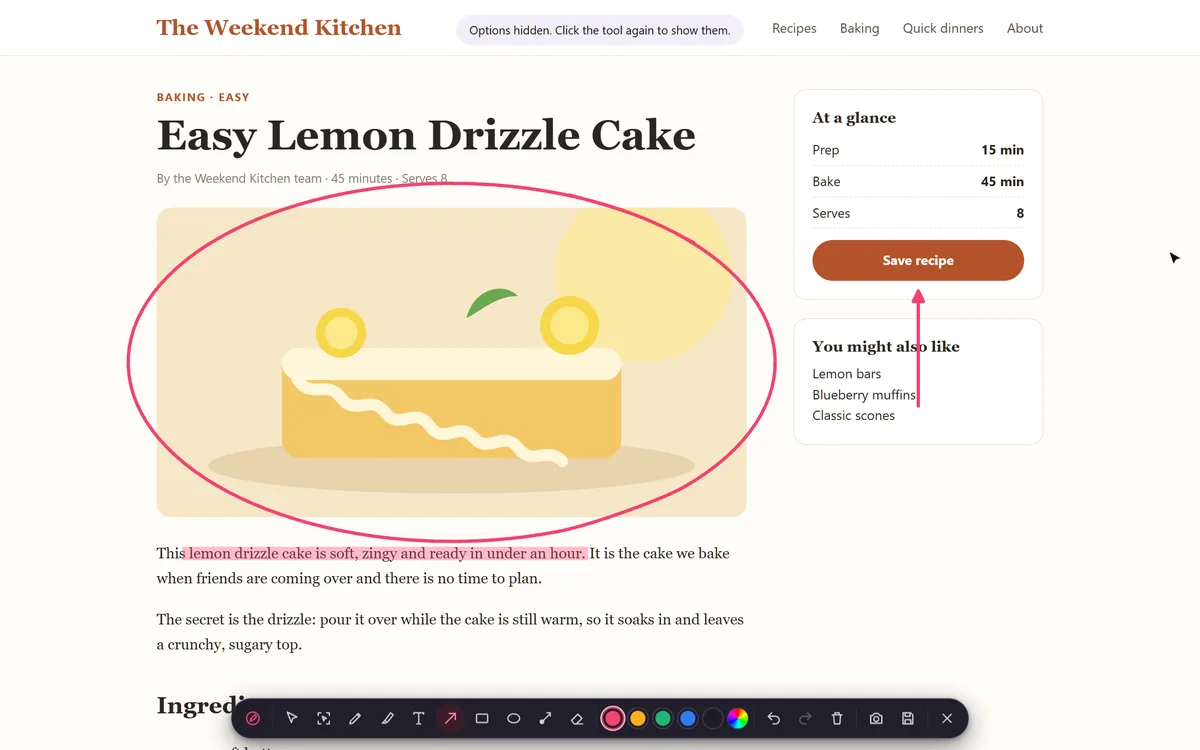
The camera saves what is visible in the tab, not the whole page, so scroll to the part you mean first. Browsers don’t run bookmarklets on their own pages, and a few sites block them. If you review pages every day, the Chrome extension opens with Alt+Shift+D and isn’t blocked the same way. The guide to drawing on a website walks through both setups.
What a useful review looks like
Designers who do this a lot settle on a few habits. A colour code helps on bigger reviews, for example red for bugs, orange for suggestions and green for “keep this”, as long as you say so in the first line of the ticket. Rectangles (R) are good for spacing and alignment problems, arrows for “move this here”. For a 1px border or a blurry icon, the Magnifier (M) puts a round zoomed-in view on the picture so nobody has to squint.
Try not to redesign the page in the drawing. A rough sketch of a new layout invites a debate about the sketch. Mark the problem, describe the goal in words, and leave the solution to the person who will build it.
Bug reports from screenshots
When a tester or a customer sends a screenshot, paste it into Annotate a screenshot, number the steps that lead to the bug and point at the result. If the screen shows a real customer’s email or phone number, cover it with Blur (B) before it goes into a tracker that many people can read.
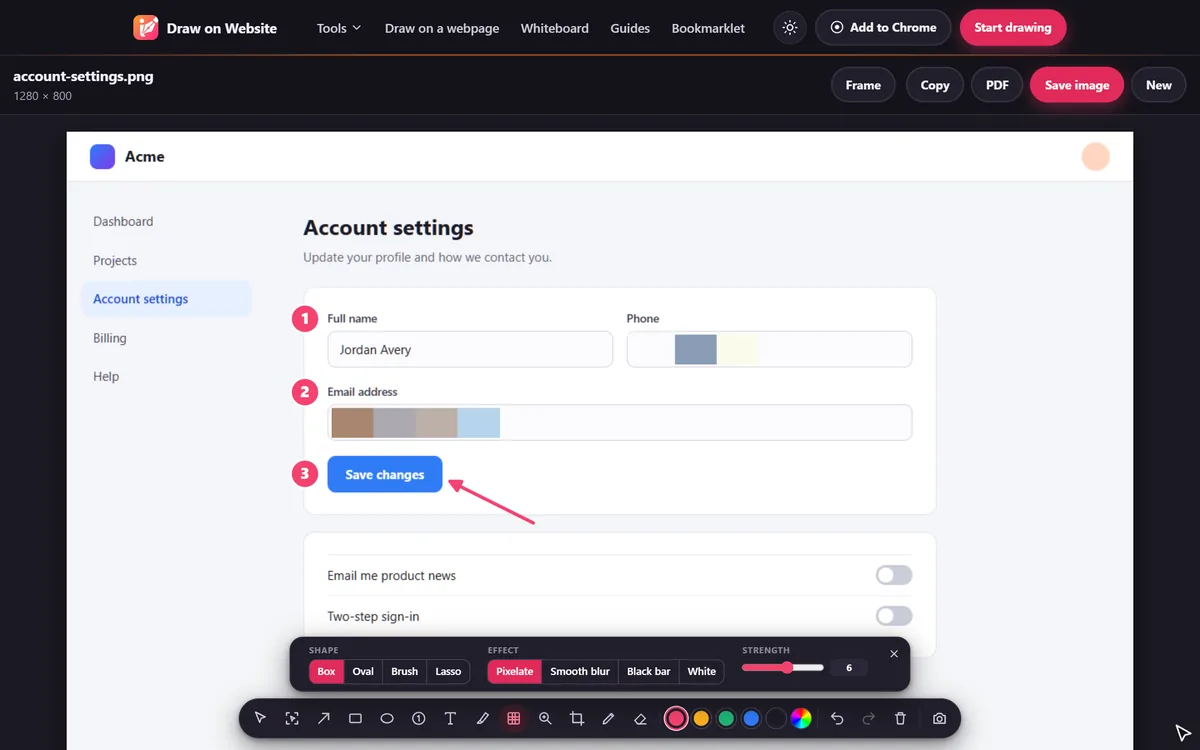
Paste a link, number the issues and copy the picture into your ticket.
Mark up a pageQuestions
Do my clients need an account to send feedback this way?
No. They can open Draw on a webpage or the screenshot tools and start drawing. Nobody signs up.
Is the page I capture stored?
Only the link you paste is sent to our server. The picture of the page is kept for up to 24 hours so it loads faster next time, then deleted. Your drawings stay in your browser.
Can the client see my drawing live while I make it?
No. Drawings on pages and screenshots are yours until you copy or save the picture and send it. For a live session, share your screen while you draw.