Drawing tools for teachers
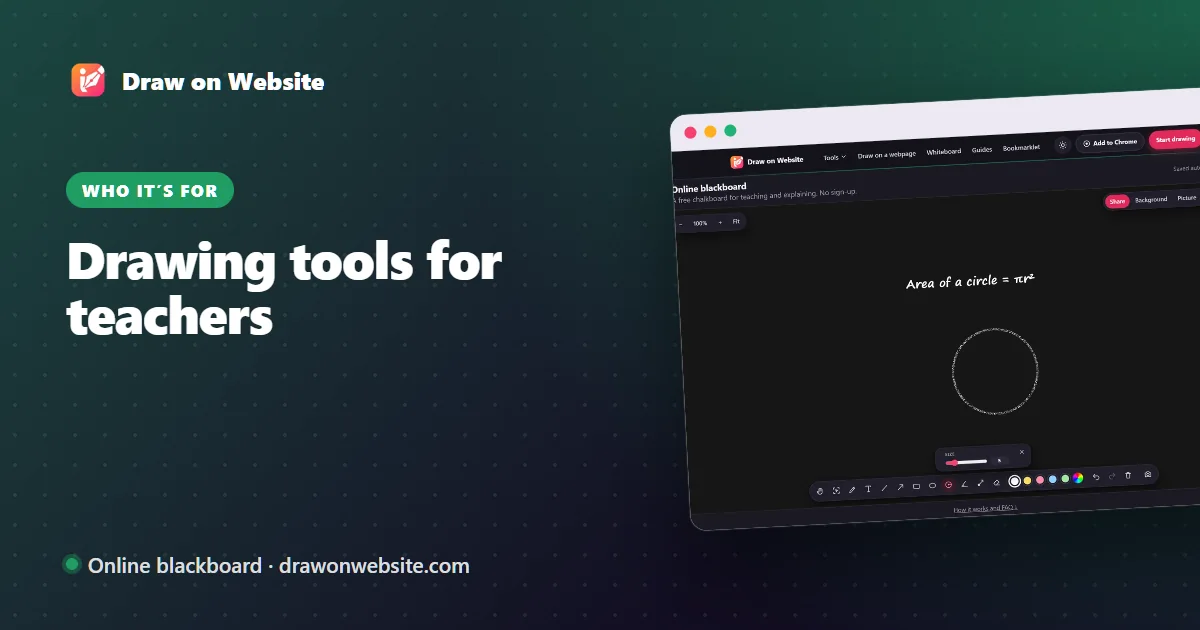
Second period, Year 9, the area of a circle. The textbook diagram is too small to see from the back row, so you draw it yourself on the projector. That is the job these tools were built for.
Most teachers we hear from use three of our pages in a normal week: the blackboard for explaining, the graph paper for anything with axes, and the whiteboard when the class needs to add their own ideas. Each opens in a browser tab on the classroom PC, so there is nothing for the school IT team to install.
A board the back row can read
Open the online blackboard and click the full-screen button before the lesson starts. Chalk on a dark board stays readable on a washed-out projector in a way thin black ink on white often doesn’t. Under Background you can switch between slate green, classic green, black, blue and brown, or add ruled lines, a grid or music staves.
For geometry, two tools do the work of the wooden set in the cupboard. The compass (C) draws a circle from its centre: put the point down and drag out to the radius. The protractor (J) measures an angle when you click a point on one arm, the corner, then a point on the other arm. Keep the white chalk for working and switch to yellow or pink for the bit you want copied into books.
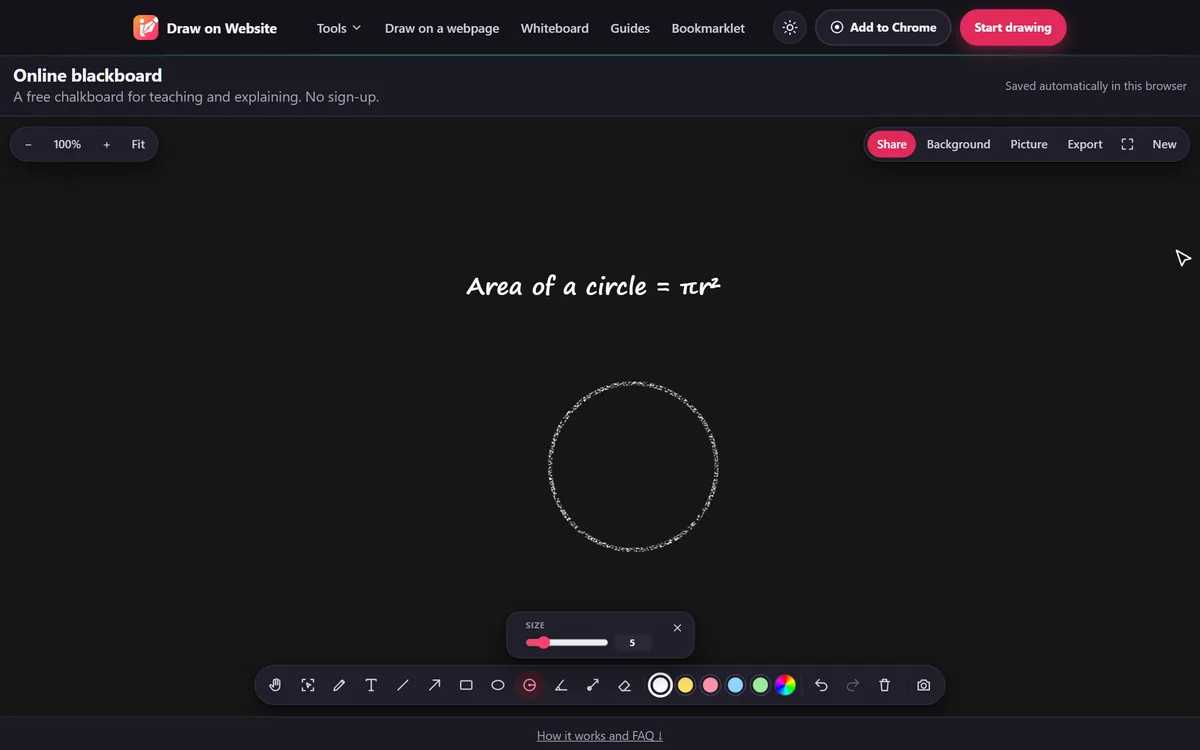
The laser pointer (Q) is the tool I would learn first. Its trail fades by itself, so you can say “this side, not that one” as often as you like without covering the board in marks.
Graphs without the ruler and pencil
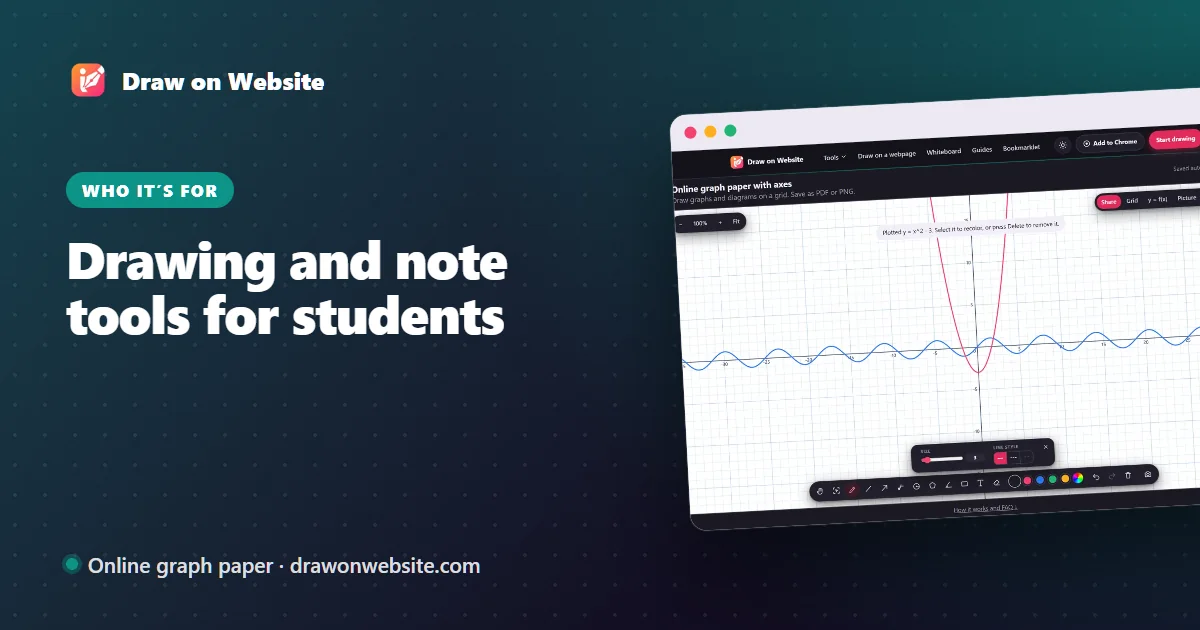
Sketching a parabola by hand in front of 30 students is slow, and it is never quite symmetrical. On the graph paper, click y = f(x), type x^2 - 3, and click Plot. Add sin(x) in a second colour and ask where the two curves meet. The board already has numbered x and y axes, and Grid lets you choose what each square is worth.
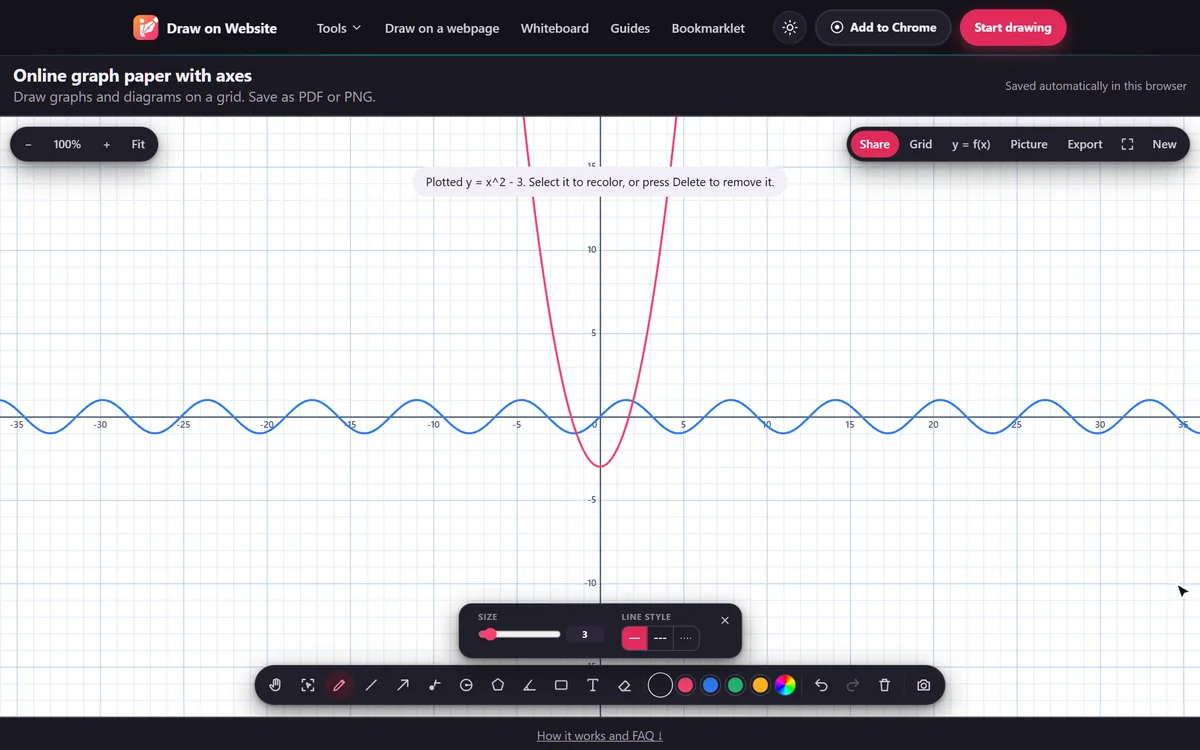
A few other things come up in coordinate lessons. The point tool (K) labels each point with its coordinates, such as (3, −2). Lines show their length, slope and angle, and polygons show their area and perimeter, which makes it easy to check an answer live. When you need paper for a worksheet, the same Grid panel has Download blank PDF. Our guide to printing graph paper covers square sizes and the print-scale trap.
When the class should draw too
For a brainstorm or a revision lesson, open the whiteboard, add a mind map from Templates, then click Share and Start a live board. Put the link on the board or in your class chat. Students open it on their own devices and draw on the same board as you, each with a random name like “Blue fox” on their cursor. It works on the blackboard and graph paper as well, which is handy for one-to-one tutoring at a distance.
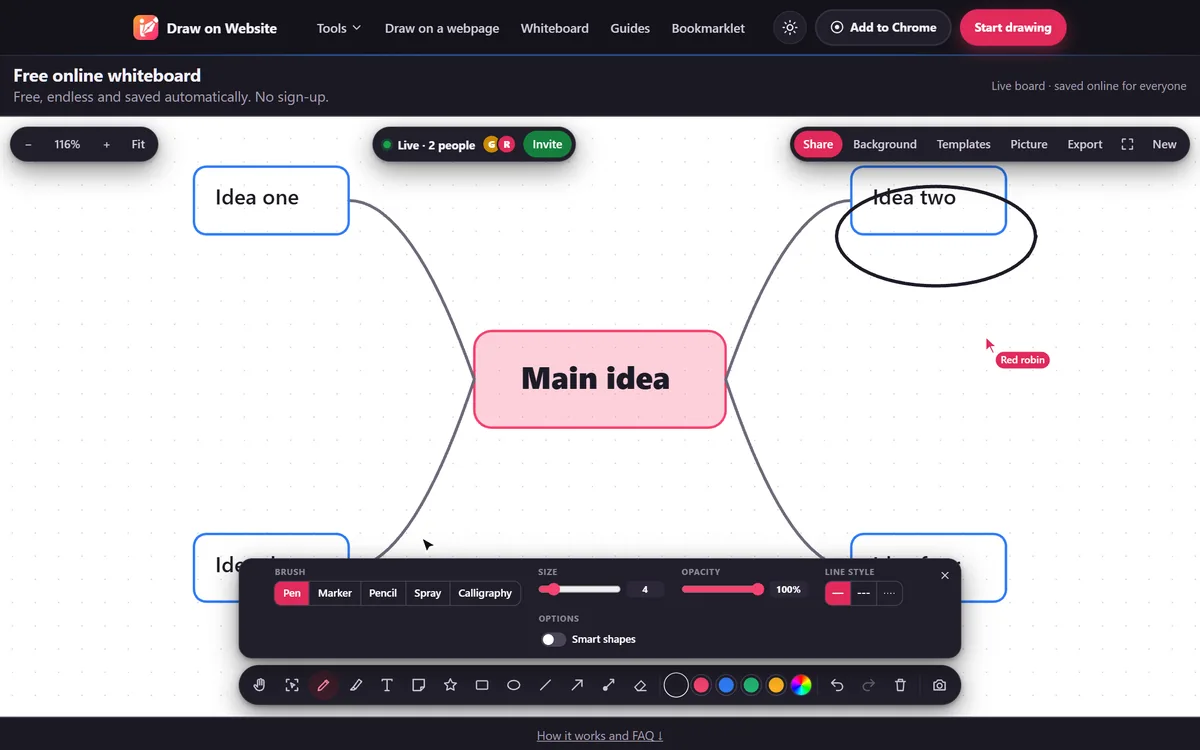
Anyone with the link can change the board, and up to 25 people can be on it at once. That suits a small group better than a whole year group. Each person’s Undo only takes back their own changes. The guide to drawing together online has the details.
Websites, worksheets and class photos
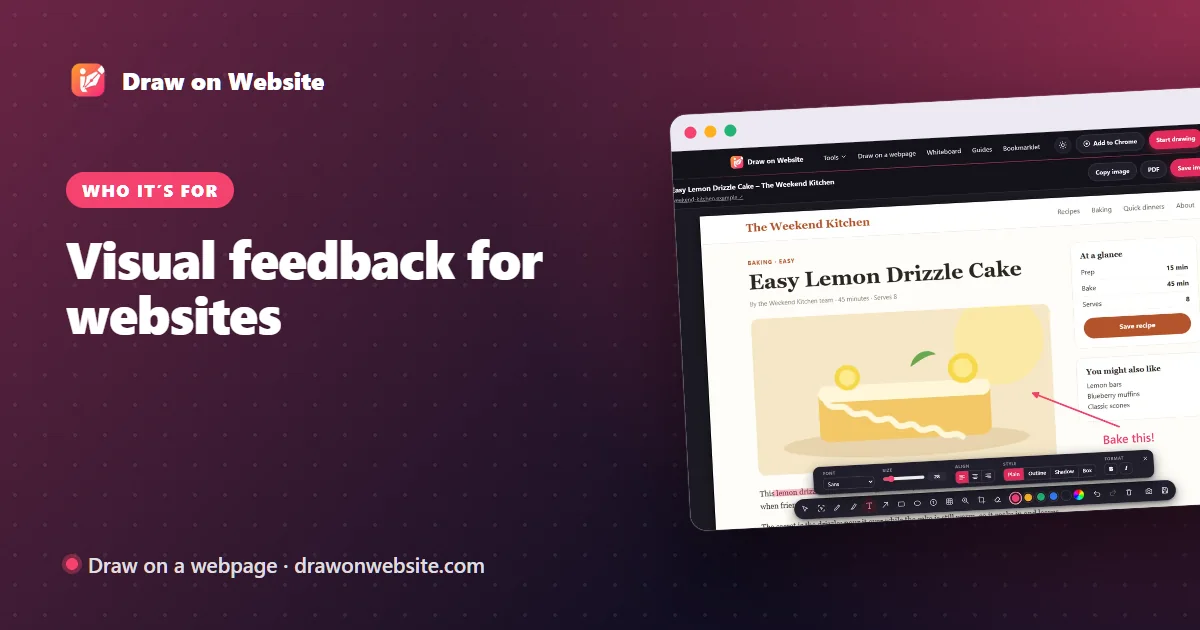
To go through a website with the class, the bookmarklet puts a drawing toolbar on the live page, laser pointer included. A photo of a student’s worksheet (with permission) can go on Draw on an image so you can show the working. Before a class photo goes in the newsletter, Blur image has a Find faces button that runs on your own computer.
Things to know before you rely on it
Boards are saved in the browser on the device you used. A board made on your laptop at home won’t be waiting on the classroom PC. Export it as a PNG or PDF, or send yourself a view-only link from Share and use Copy to my board at school. Clearing the browser’s data also clears saved boards, so export anything you want to keep. And these are web pages, so they can’t draw over desktop PowerPoint.
Chalk, a compass and a protractor, ready on the classroom PC. No sign-up for you or your students.
Open the blackboardQuestions
Does it work on an interactive whiteboard or smart board?
Yes, if the smart board is connected to a computer with a browser. Touch works, and a stylus works too, including pen pressure on the boards.
Do students need accounts to join a live board?
No. They open the link in a browser and can draw straight away. Nobody is asked for a name or an email.
Can I prepare a board at home and use it in class?
Yes. On Share, click Create link and open that link at school. Click Copy to my board there to keep working on it. The link is view-only for anyone else who opens it.