Annotated screenshots for support teams
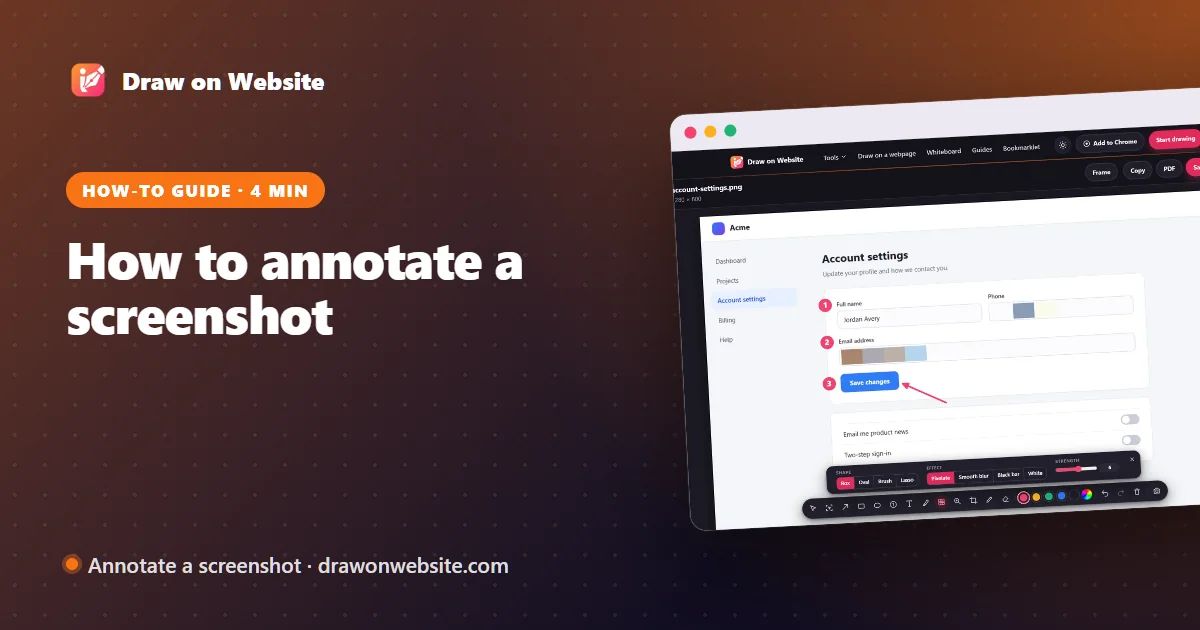
A customer writes: “Where do I change my email address?” You could explain the menu in four sentences. Or you send one picture with a 1, a 2 and an arrow on the Save button, and the ticket closes.
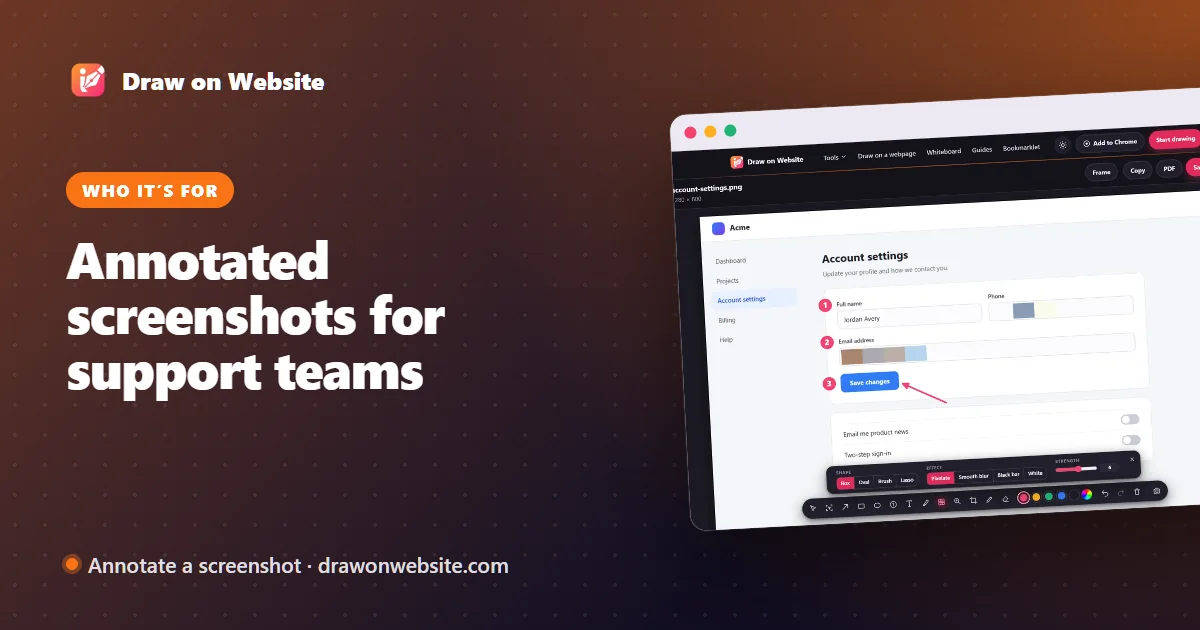
Support people answer the same few questions all day, and most of them are about where something is. A marked-up screenshot answers a “where” question better than text, because the customer doesn’t have to translate your words into a place on their screen.
The reply that answers itself
Take the screenshot from your own test account, never from the customer’s if you can avoid it. Paste it into Annotate a screenshot with Ctrl+V. The tool starts on Arrow, but for a support reply I switch to Numbered steps (S) first and click each place in the order the customer should go. Then one arrow at the final button, because that is the step people miss. Copy puts the picture on your clipboard, ready to paste into the reply.
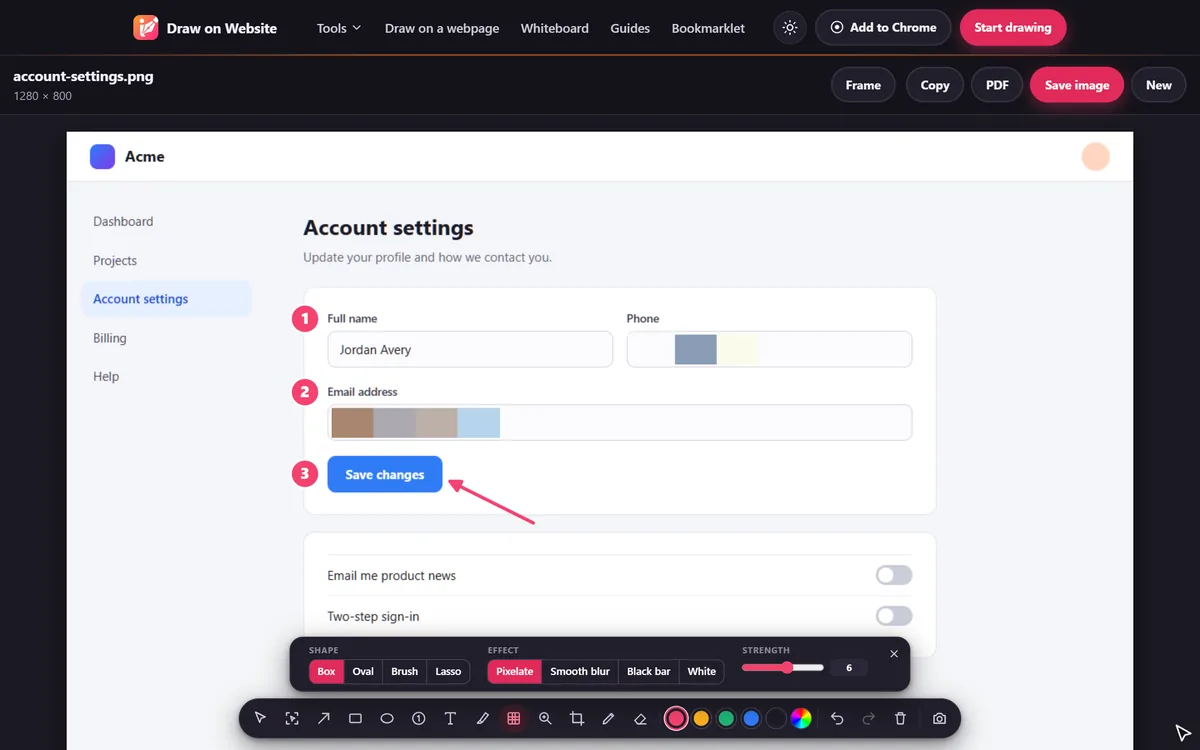
Write the steps in the reply as well, numbered the same way. Some customers read email in plain-text clients or with images turned off, and screen readers can’t read your arrows. The picture shows where; the text makes sure nobody is left out.
One honest catch: if you delete badge 2, the others don’t renumber. Delete and re-add the later badges to get a clean 1, 2, 3. The full guide to annotating a screenshot covers the rest of the tools.
Customer screenshots come with customer data
When a customer sends a screenshot of a bug, it usually shows their name, phone number or an order number. Before it goes into a bug ticket, cover those. In Blur image (and in the screenshot tool’s Blur), set Effect to Black bar for anything that must stay private. Pixelation looks tidier, but short numbers can sometimes be guessed from the blocks.
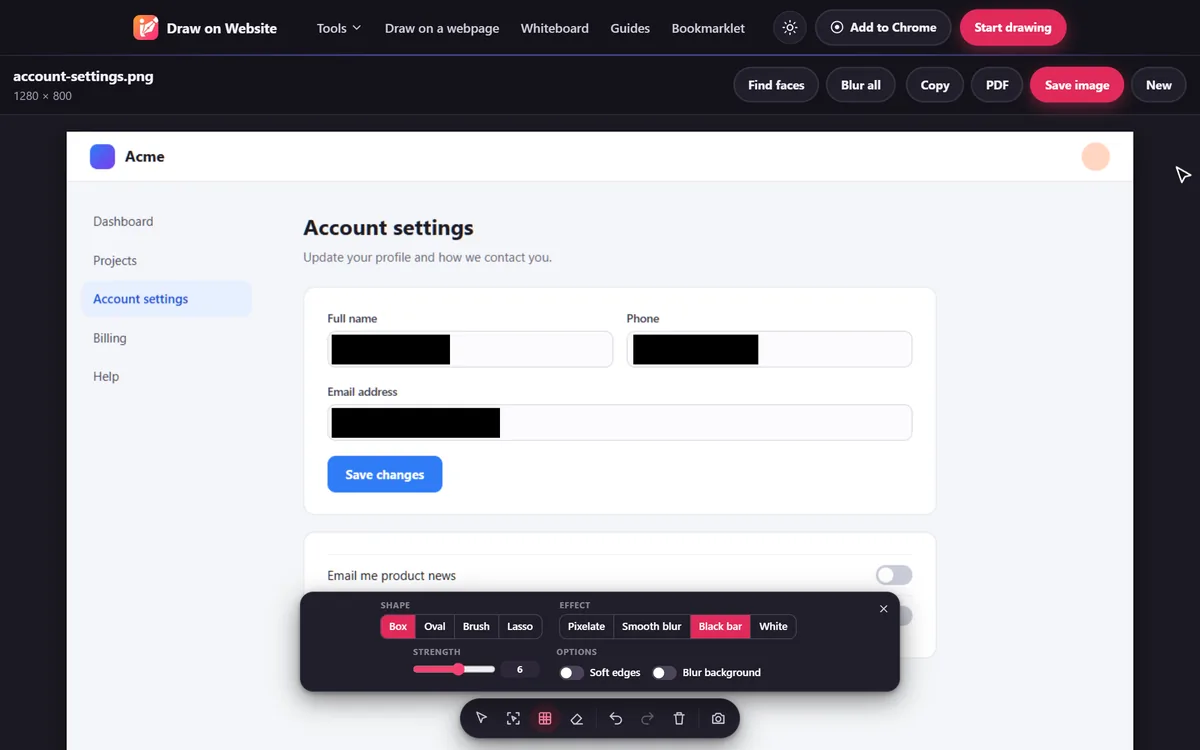
The image tools edit the picture in your browser, and the picture is not uploaded, which matters when the screenshot belongs to a customer. When you save, the tool draws a brand-new picture with only black pixels where the bars were, so there is no hidden layer to peel back. Our guide to redacting an image goes into why.
Screenshots for the help centre
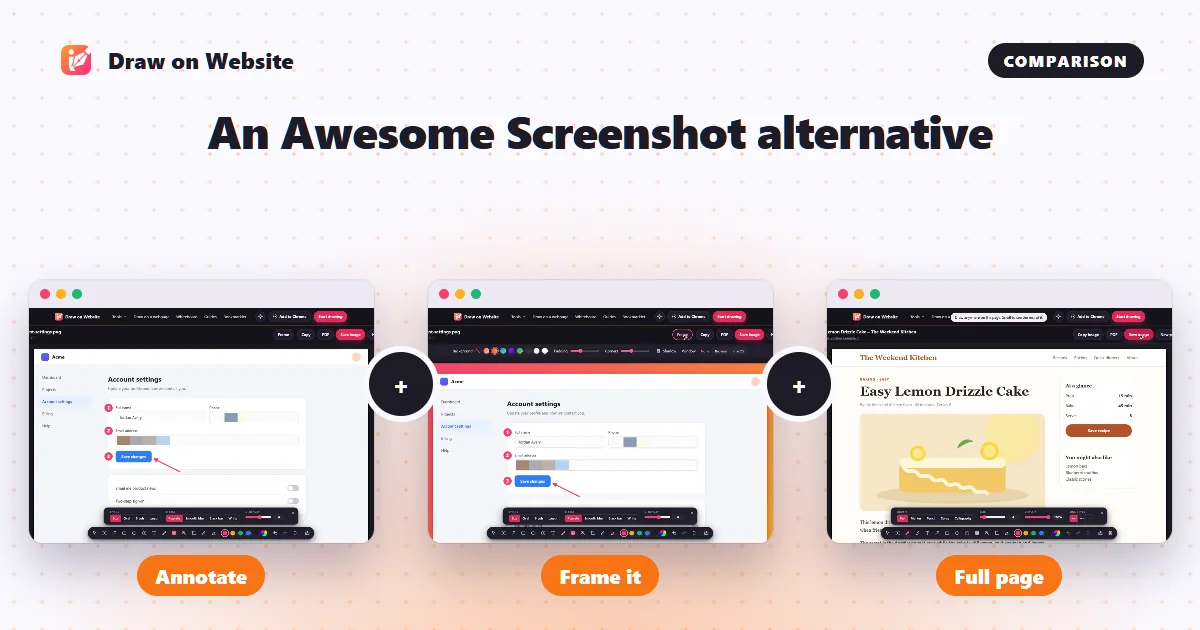
Help articles live for months and get read by people who are already a bit lost, so the pictures deserve more care than a quick reply. Crop (X) away everything but the part of the screen the article is about. For small menu items and icons, the Magnifier (M) adds a round zoomed-in view. Then click Frame for a background with padding, rounded corners and a shadow, and pick a Browser or macOS window if you want one.
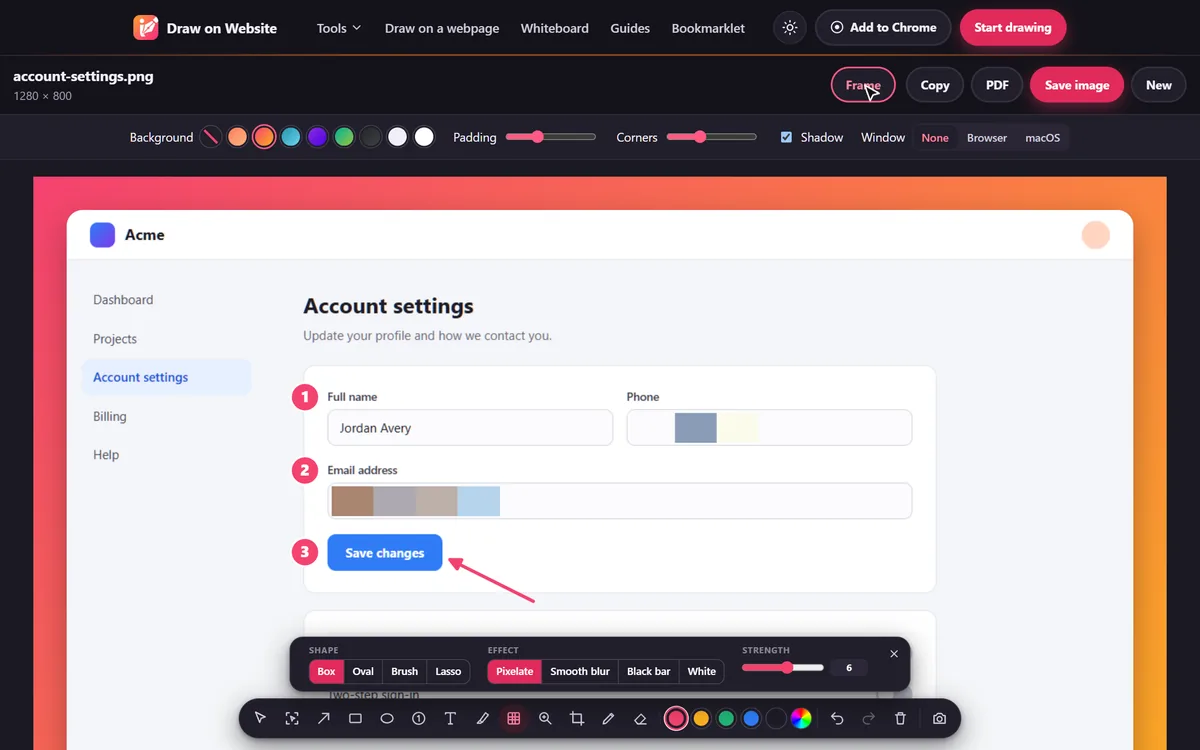
Agree on a house style as a team: one colour for arrows, the same frame on every article, numbers only for sequences. A help centre where every picture looks different feels unfinished. Keep the original, unmarked screenshots in a shared folder too. When the interface changes, you redo the markup in a minute instead of starting from scratch.
On a call instead of in a ticket
Sometimes a screen share is faster. With the bookmarklet or the extension, you can draw over your own view of the web app while the customer watches, and the laser pointer (Q) fades on its own so you can point as often as you like. The guide to drawing during a presentation shows the setup.
Paste, number the steps, copy it into your reply.
Annotate a screenshotQuestions
Is customer data uploaded anywhere?
No. Pictures you open in the image tools are edited in your browser and never sent to our server.
Should I use PNG or PDF for help articles?
PNG. Text in a screenshot stays sharp, and every help-centre editor accepts it. PDF is for printing or filing.
Can I edit an arrow or a number after placing it?
Yes. Press V for Select, click the mark, then move, resize or recolour it before you copy or save.