An Awesome Screenshot alternative
You took a screenshot of a bug, and you want to put an arrow on the button, number the steps and hide the customer’s email before sending it. Awesome Screenshot can do a lot more than that. The question is whether you need the rest.
Awesome Screenshot is a full screen capture and screen recording suite. Draw on Website is a set of browser tools for marking up pictures and pages. They overlap on annotating screenshots, and that is where the choice gets interesting.
Pick Awesome Screenshot if you need video or integrations
Its homepage describes a Chrome extension plus apps for Mac, Windows and iOS. It records your screen and camera, takes full-page screenshots and lets you annotate them. It has integrations with tools like Slack, Jira and Trello, and your captures can be shared through its service or saved locally.
We don’t record video at all. If you send screen recordings, or your team wants captures to go straight into a Jira ticket, it is the better fit. Check their site for plans and limits, since we haven’t listed them here.
Pick Draw on Website for quick, private markup
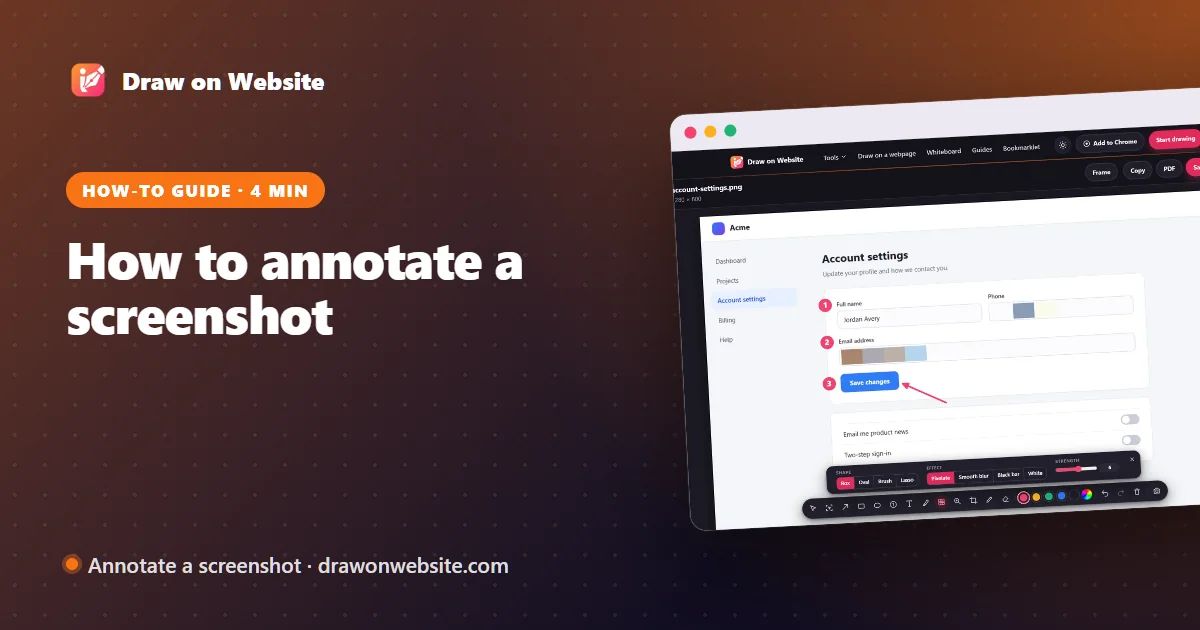
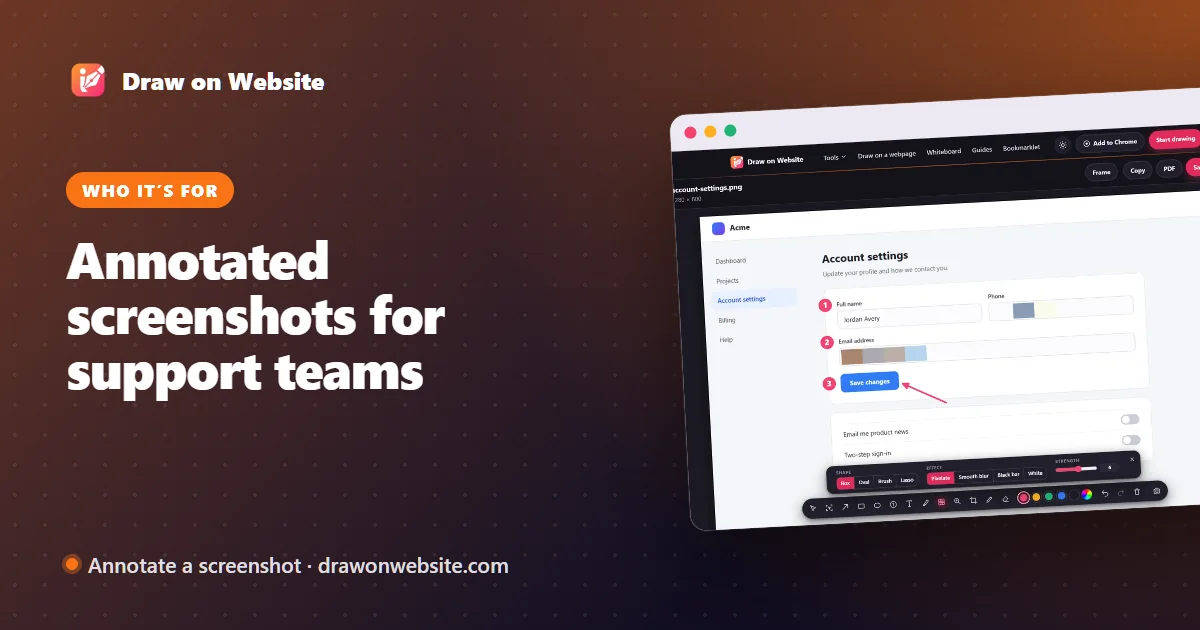
Open Annotate a screenshot, press Ctrl+V to paste, mark it up and click Copy to paste it into your chat or email. There is no account and no app to install, and the screenshot is edited in your browser without being uploaded.
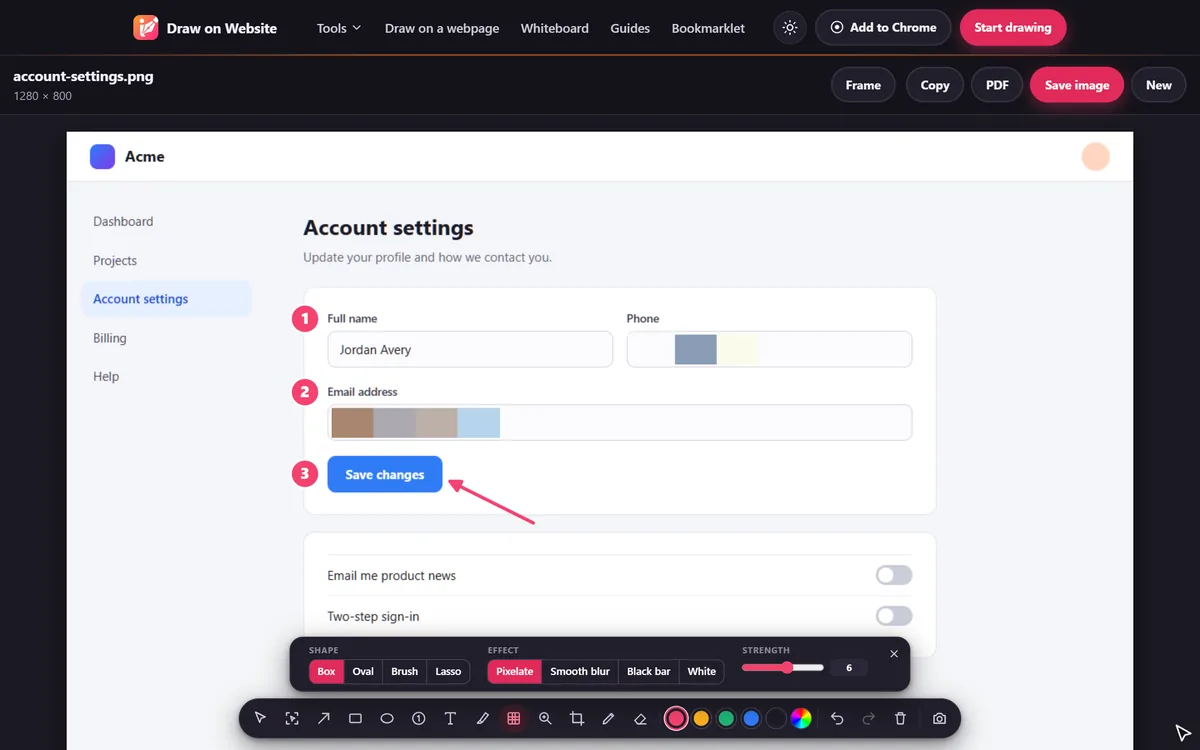
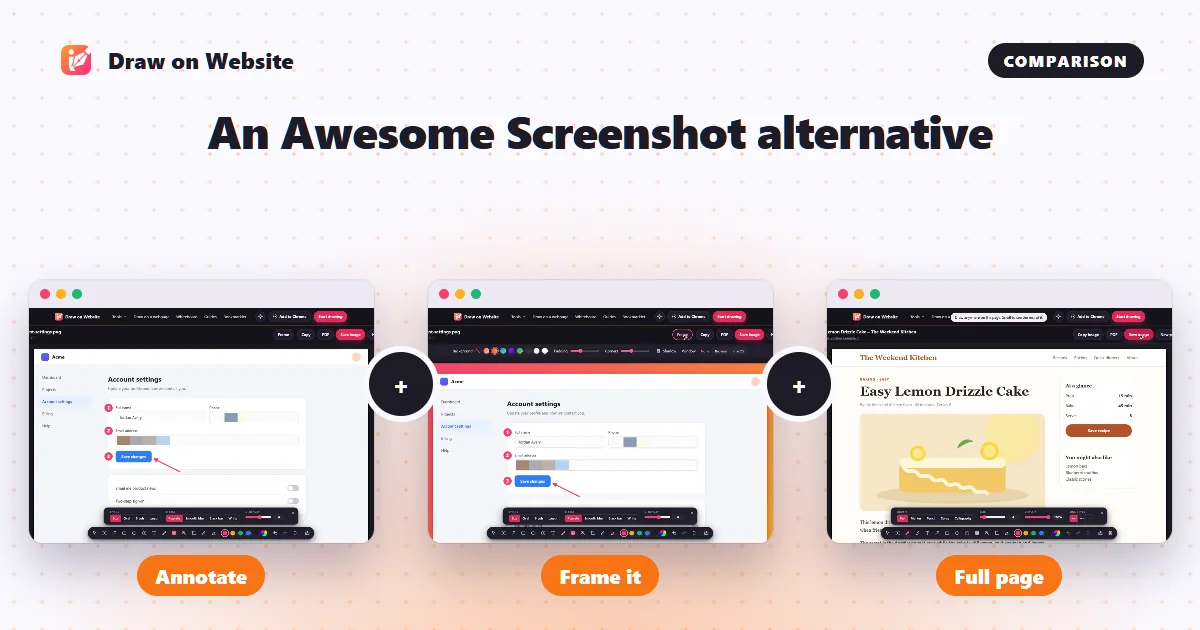
The tools are chosen for explaining things: arrows, boxes, ovals, numbered steps that count themselves, text, a highlighter, a magnifier for small details, crop and blur. Blur can pixelate, smooth blur, or use a black bar. For anything sensitive, use the black bar. The pixelate vs blur vs black bar page explains why.
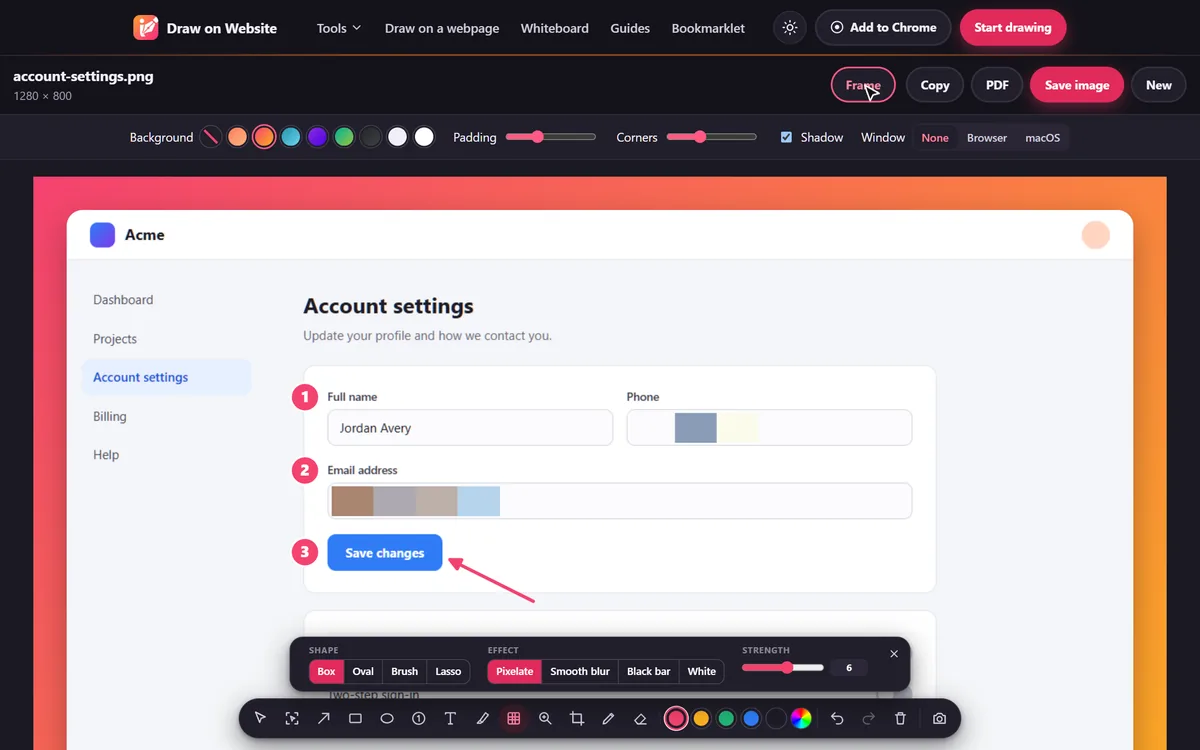
Frame puts the screenshot on a gradient background with padding, rounded corners, a shadow and a browser or macOS window bar. It is a small touch, but it makes a screenshot look finished in a slide or a tweet.
Full-page screenshots work differently
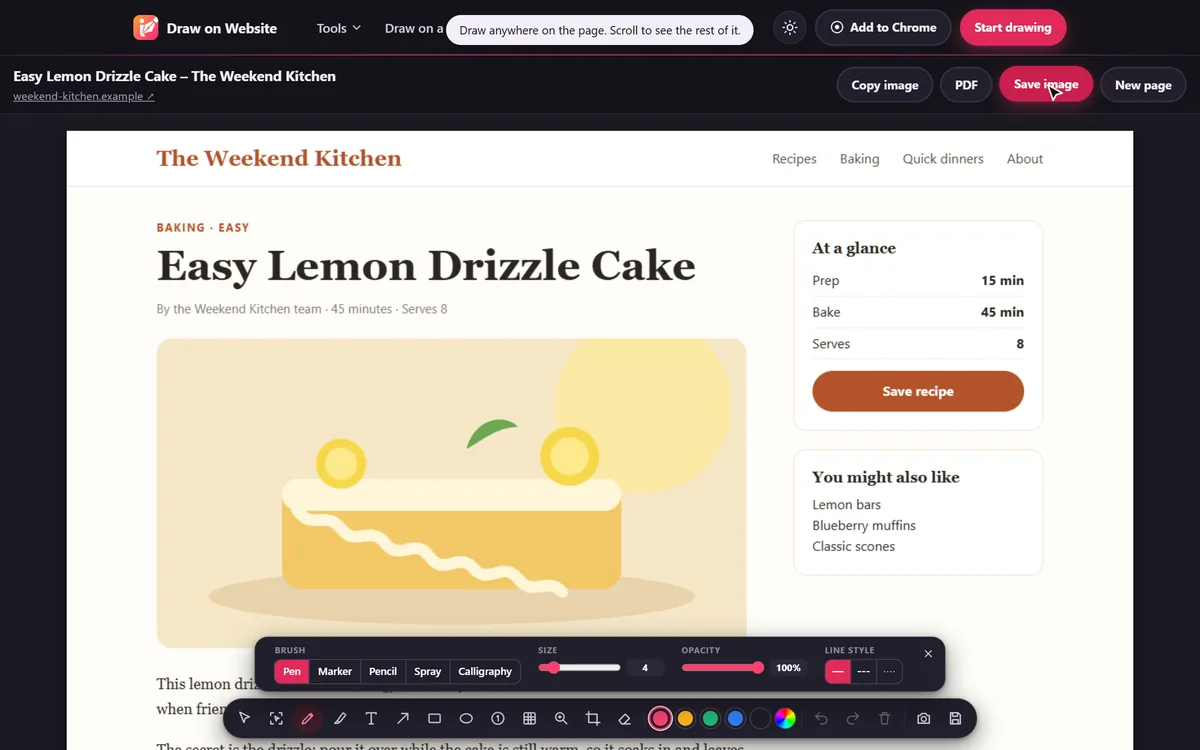
Both tools can give you a whole page in one picture, but in different ways. On Draw on a webpage you paste a link, our server captures the page top to bottom, and you mark it up and save it with Copy image, PDF or Save image. The catch: we open the page as a visitor who isn’t signed in, so it won’t work on pages behind a login. For those, our extension can capture the full page in your own browser.
| Awesome Screenshot | Draw on Website | |
|---|---|---|
| Screen and camera recording | Yes | No |
| Desktop and phone apps | Mac, Windows and iOS | No, it runs in the browser |
| Annotate a screenshot | Yes | Yes |
| Full-page screenshot | Yes | Yes |
| Integrations with Slack, Jira, Trello | Yes | No; copy the image and paste it |
| Account needed | Check their site | No |
Awesome Screenshot details come from its homepage, checked on 22 November 2026. We only list what we could confirm there. See their site for anything else.
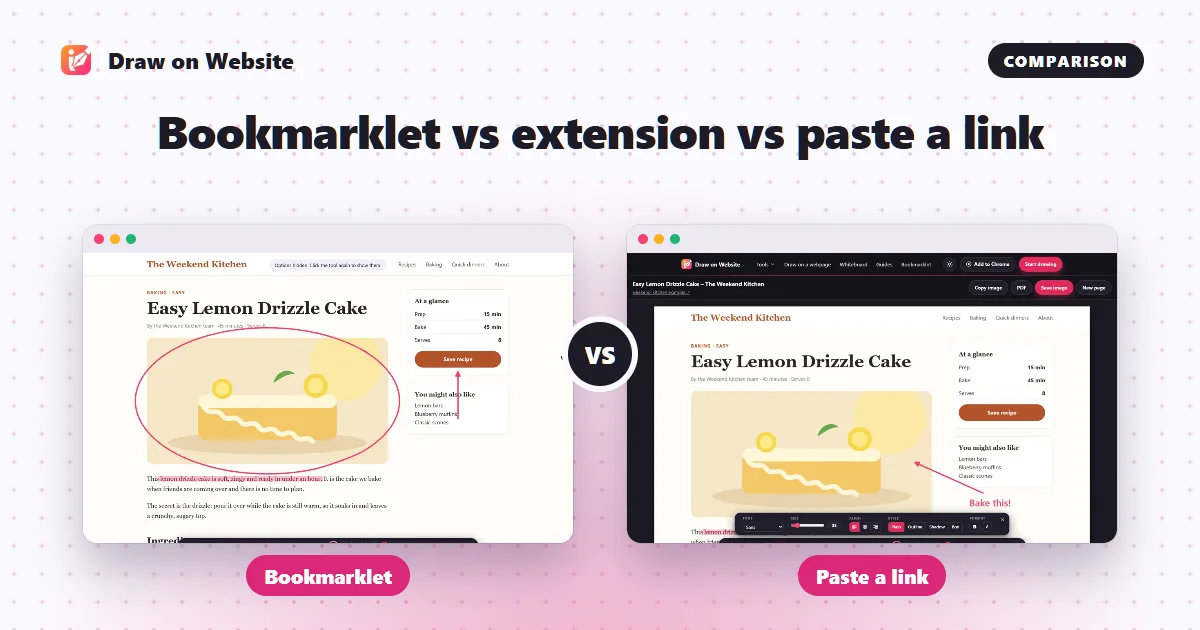
One more option is worth knowing. If you want to point at something on a live page during a call, rather than send a picture, the bookmarklet puts a drawing toolbar right on the page you have open, logged-in pages included. Draw an arrow, use the laser pointer, then close it and the page is back to normal.
If you are new to marking up screenshots,how to annotate a screenshot walks through a full example.
Paste it, mark it up, copy it back.
Annotate a screenshotAwesome Screenshot is a product of its own developer. Draw on Website is independent and not affiliated with it.
Questions
Can Draw on Website record my screen?
No. It works with pictures: screenshots, photos and webpages. For video, use a screen recorder.
Is my screenshot uploaded?
No. Annotate a screenshot opens and edits it in your browser. Only Draw on a webpage sends something to our server, and that is the link you paste.
Can it find faces in a screenshot automatically?
Yes, on the blur tool. Click Find faces and it blurs the faces it finds. Check the result, since it can miss some.