A Page Marker alternative
Page Marker is a simple, popular Chrome extension for drawing on webpages. People usually look for something else when they want arrows and boxes, a whole page saved as one picture, or a way in on a computer that won’t take extensions.
Here is an honest comparison, so you can decide whether switching is worth it. For a lot of people it isn’t, and that is fine.
Stay with Page Marker if freehand is all you need
Page Marker does the basics well. Its Chrome Web Store listing shows about a million users. It has a marker, highlighter, text, lines, an eraser, undo and redo, a pointer and keyboard shortcuts, you can move what you drew, and you can save a picture to your computer. The listing says it does not collect or use your data, and it is free. If you circle things and scribble notes on pages, it does the job.
One thing to know: its store listing showed a last update in December 2023 when we checked.
Try Draw on Website if you want more than a marker
The bookmarklet and extension give you straight arrows, rectangles and ellipses, with Shift to snap them. Select (V) lets you move, resize or rotate anything after you have drawn it, which matters more than it sounds when an arrow lands a little off. There is also a laser pointer (Q) whose trail fades by itself, useful when you are sharing your screen.
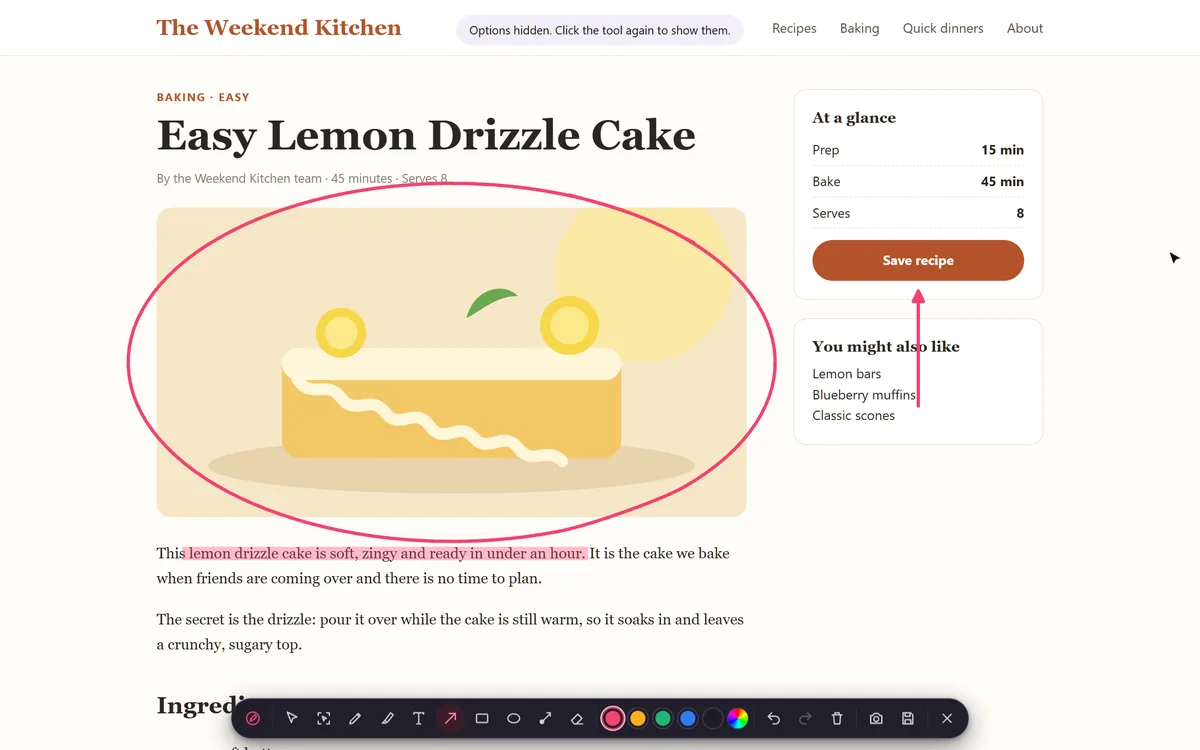
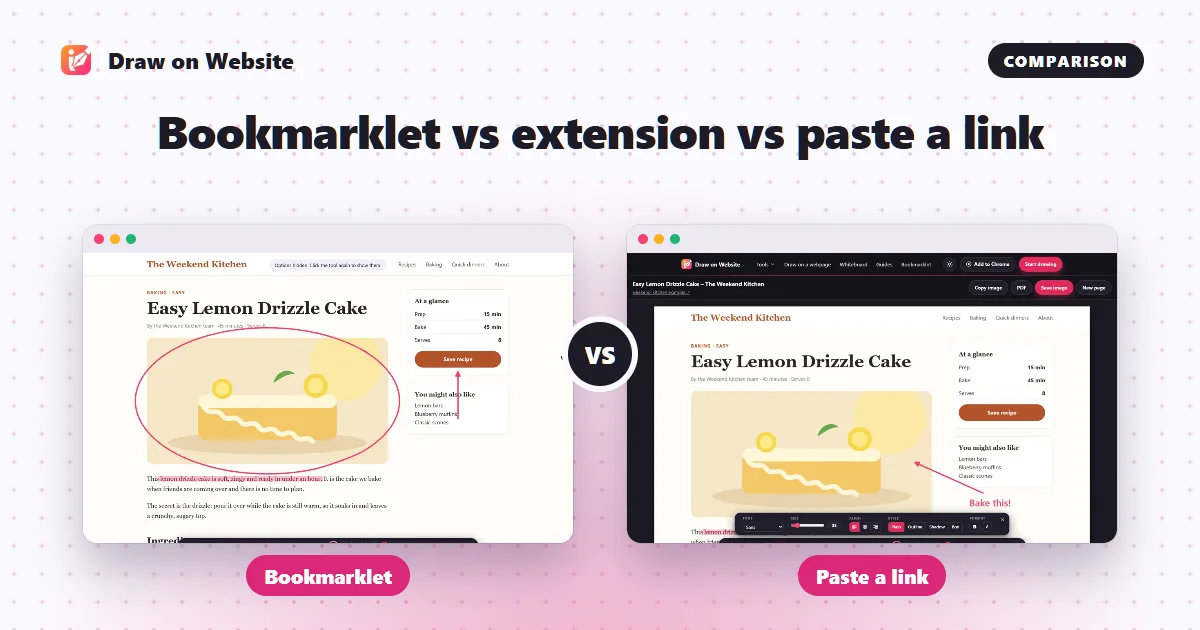
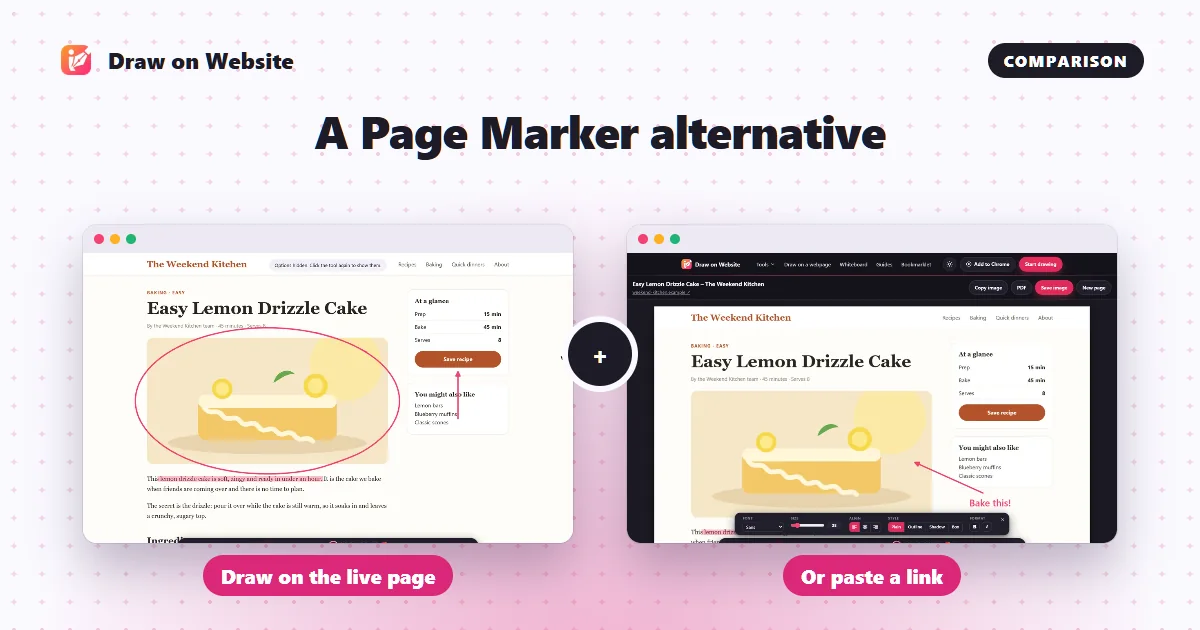
The bigger difference is how you get it. The bookmarklet is just a bookmark, so it works on school and work computers that block extensions, and in Firefox and Safari. If you can’t install Page Marker at all, that alone may decide it.
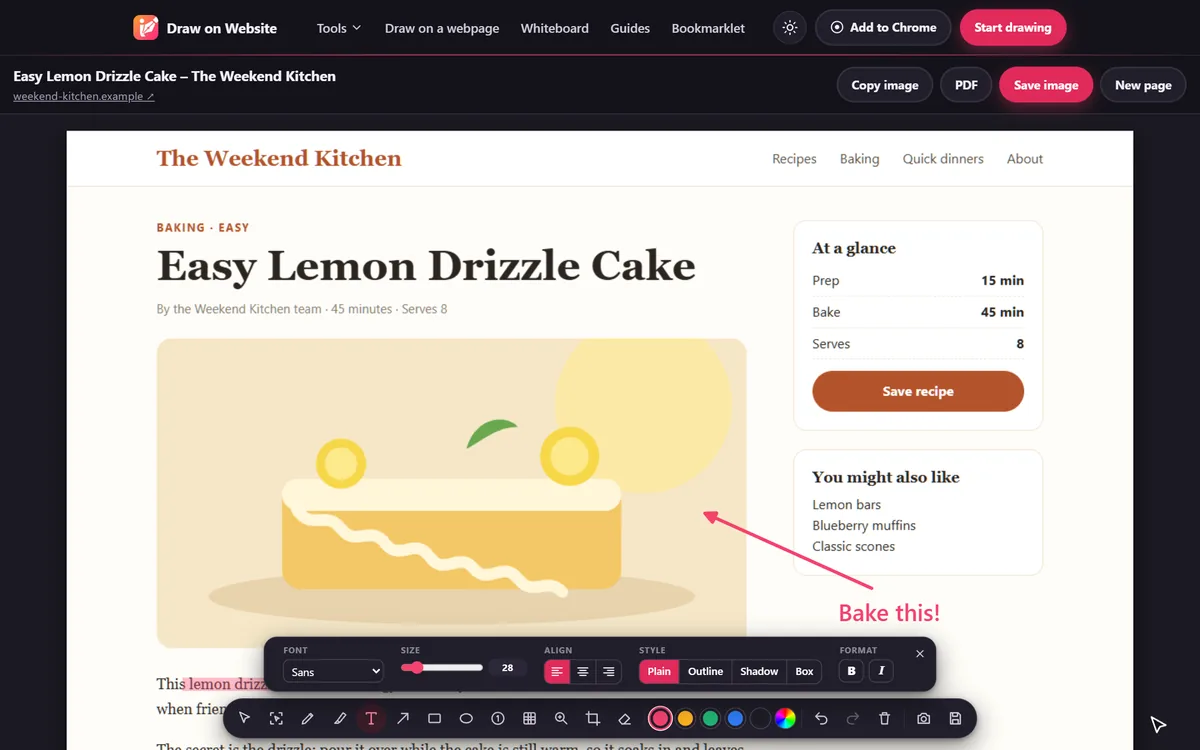
And if you need a whole page, not just the part on screen, paste its link on Draw on a webpage. You draw on a picture of the full page and save it as one image or PDF. That page also has blur for hiding private details and numbered steps. It only works for public pages, because we open them as a visitor who isn’t signed in.
Side by side
| Page Marker | Draw on Website | |
|---|---|---|
| Price | Free | Free |
| How you get it | Chrome extension | Bookmarklet, Chrome extension, or paste a link |
| Pen, highlighter, text, line, eraser | Yes | Yes |
| Move what you drew | Yes | Yes |
| Arrows, boxes and ovals | Not listed | Yes |
| Resize and rotate what you drew | Not listed | Yes |
| Laser pointer | Not listed | Yes |
| Whole page in one image or PDF | Not listed | Yes, by pasting a link |
| Firefox and Safari | Not stated | Yes, with the bookmarklet |
Page Marker details come from its Chrome Web Store listing, checked on 22 November 2026. “Not listed” means the listing doesn’t mention it. It may still exist, so check their listing for the current version.
Trying it takes a minute
- Drag the bookmarklet to your bookmarks bar, or install the extension.
- Open a page and click it. Many keys will feel familiar: D pen, H highlighter, T text, E eraser.
- Press Esc twice, or click the bookmark again, to close it.
You can keep Page Marker installed while you try. They don’t conflict. Not sure which of our three ways to use? Bookmarklet vs extension vs paste a link helps with that, and how to draw on a website shows each step.
Draw on the page you are on, with nothing to install.
Try the bookmarkletPage Marker is a product of its own developer. Draw on Website is independent and not affiliated with it.
Questions
Is Draw on Website free like Page Marker?
Yes. All of it is free, with no sign-up and no watermark.
Can I use it without installing an extension?
Yes. Use the bookmarklet, which is a bookmark, or paste a page’s link on Draw on a webpage.
Will my drawings stay on the page?
With the extension, they are saved for each page automatically. With the bookmarklet, click the save button and they come back next time you open it on that page.