How to highlight text on a webpage
On paper you would just grab a yellow marker. A student reading a long article for an essay, or someone comparing two phone contracts, needs the same thing on screen: a quick way to make the important lines stand out.
Browsers don’t come with a highlighter, so we made one that works on almost any site. It is part of the Draw on Website bookmarklet, a bookmark you click on the page you are reading.
Set it up once
Open the bookmarklet page and drag the pink button up to your bookmarks bar. That’s the whole install. If you can’t see a bookmarks bar, press Ctrl+Shift+B in Chrome or Edge to show it. If you’d rather have a button next to the address bar, the Chrome extension has the same highlighter.
Highlight the lines that matter
- Open the article and click the bookmark. A toolbar appears at the bottom of the page.
- Press H, or click the highlighter button.
- Drag over the text. Hold Shift while you drag and the stroke stays perfectly straight, which looks much tidier on a line of text.
- Pick another marker colour from the toolbar if you want to sort things. Yellow for the main points and pink for things to check later works well.
- Press T and click next to a line to type a short note.
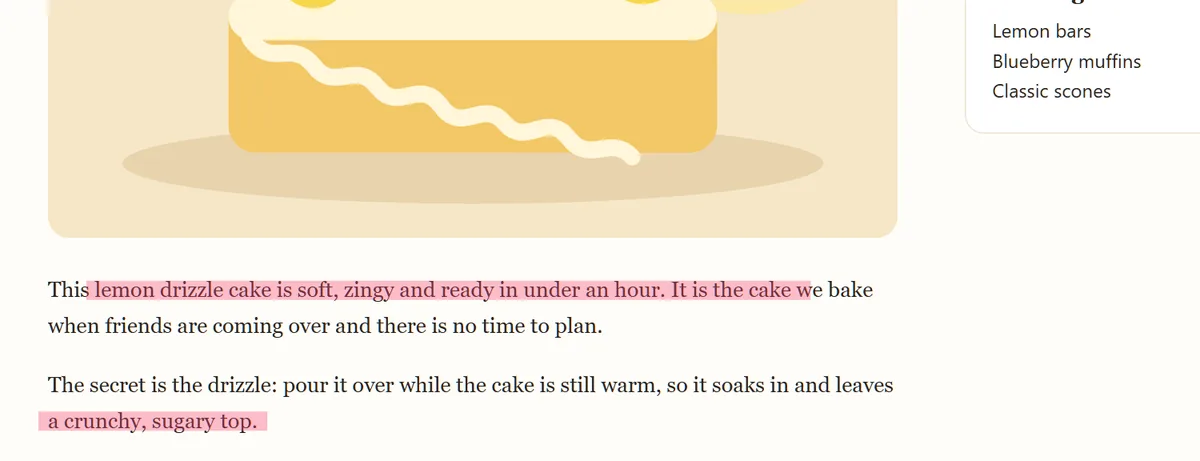
You can change how strong the colour is with the Opacity slider that appears when the highlighter is selected. Made a mistake? Press Ctrl+Z, or use the eraser (E), which removes whatever stroke you touch.
When you need to scroll or click a link, press P for the Pointer. Your highlights stay where they are. Press H again to carry on.
Keep your highlights for next time
Highlights you don’t save are gone when you close the bookmarklet or reload the page. To keep them, click the save button (the disk) in the toolbar. They are stored in your browser for that page address, and the next time you open the page and click the bookmark, they come back.
Send them to someone else
Nobody else can see your highlights, because they only exist in your browser. To share them, click the camera button. Your browser asks which tab to capture, and you get a picture of what is on your screen.
For a long article you want to share in one piece, paste its link on Draw on a webpage instead. It captures the whole page from top to bottom, and the highlighter works there too. The full-page screenshot guide explains what that capture can and can’t do.
One bookmark, and you can highlight on almost any site. Free.
Get the bookmarkletHighlighting a picture instead
If what you have is a screenshot or a photo of a page, use Highlight an image. As well as the marker, it has a Box highlight for whole blocks of text and a Spotlight that darkens everything except the part you mark.
Questions
Does it work on Wikipedia and news sites?
Yes, on almost every normal website. A few sites with strict security settings block bookmarklets. The Chrome extension works on those.
Can I highlight text in a PDF?
Not with the bookmarklet, because browsers don’t run bookmarklets in their PDF viewer. Open the file on Draw on PDF instead.
Will the highlights show up on my other computer?
No. Saved highlights stay in the browser where you made them. Save a picture if you need them somewhere else.